How to keep the same character across an AI photoshoot
Build a reusable character brief, keep inputs consistent, and review identity drift across an AI portrait series without relying on a seed or prompt alone.
Written by
AI Pose Refs Team
Practical guides to choosing pose references, planning portrait series, and using references in your own AI image workflow.
Character consistency is something to inspect across finished images. Repeating a name or copying a prompt does not establish it by itself. A useful workflow records the identity details you want to retain, supplies an appropriate reference where supported, and checks every new pose against an accepted image.
Keep your first experiment small. Choose an original adult character, a simple outfit, and two clearly different poses. If those images already look like different people, making a larger batch will leave you with more images to correct.
Write an identity brief you can actually check
Separate identity from expression, lighting, and pose. Hair length belongs in the identity brief. A head turn belongs in a shot description. A warm highlight on the face belongs in the lighting brief.
For a fictional adult character called Lena, a working record might look like this:
| Part of the brief | Example decision | Review question |
|---|---|---|
| Face | Broad forehead, softly squared jaw | Does the face structure remain recognizable? |
| Hair | Short dark curls, side part | Did length, texture, or parting change? |
| Body | Broad shoulders, sturdy build | Did the proportions shift between frames? |
| Wardrobe | Olive suit, cream shirt, plain buttons | Are cut, colors, and garment details stable? |
| Flexible details | Head direction, hand placement, expression | Is this difference intentional for the shot? |
Use only details that matter to your project. A long list of tiny features can become difficult to compare, especially when the face occupies a small part of the frame. Keep a clear accepted image beside the written description so you can assess both.
Use an identity input when the tool supports one
Check the documented purpose of each image input. A reference that guides colors and rendering style may not be designed to retain a particular person. Midjourney's style-reference documentation distinguishes visual style from copying people or objects. Midjourney Style Reference documentation.
Use a character or identity input when your chosen tool provides one, following its instructions for framing and supported image combinations. A clear source portrait is a useful starting point, but the effect still needs review.
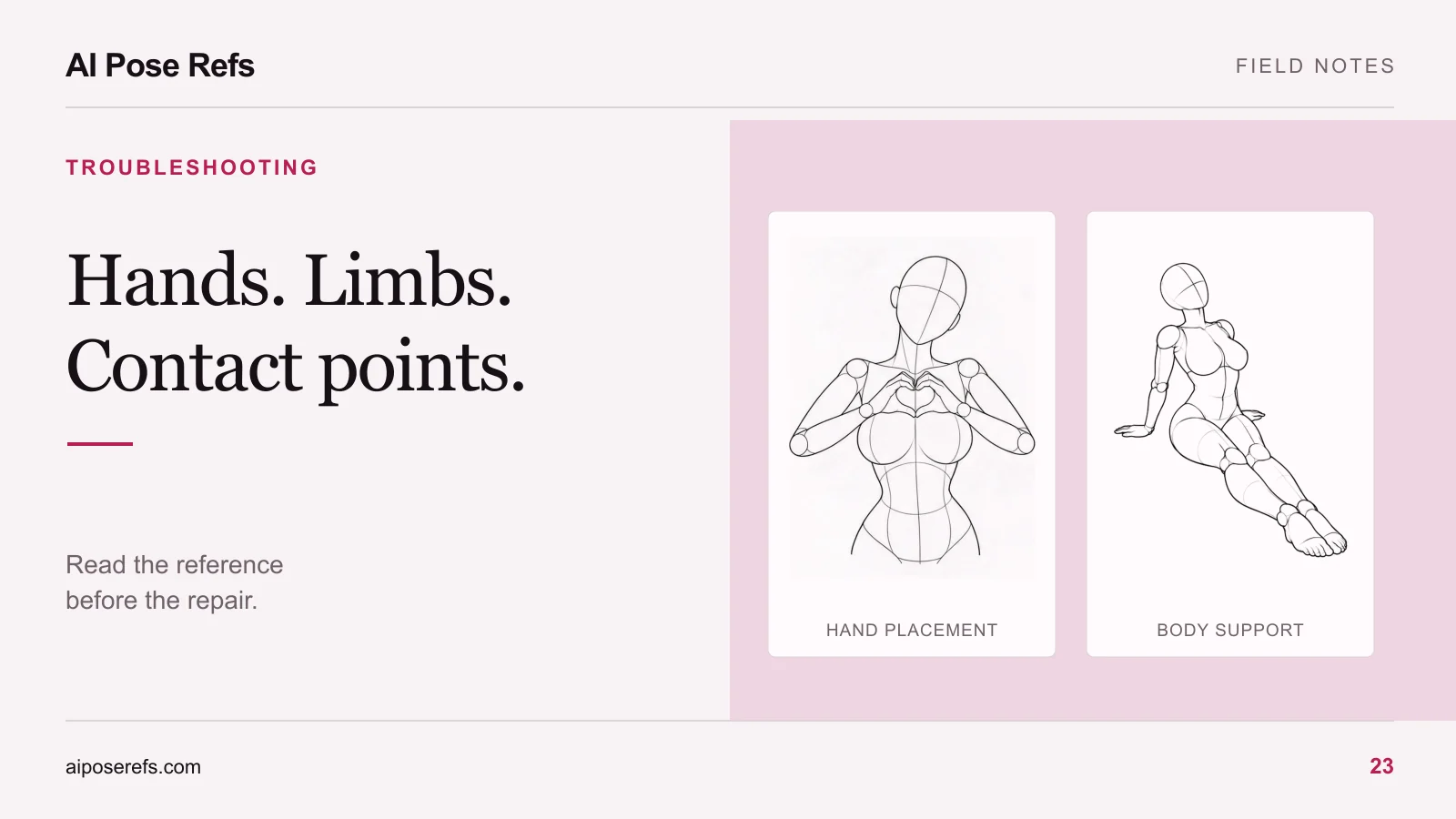
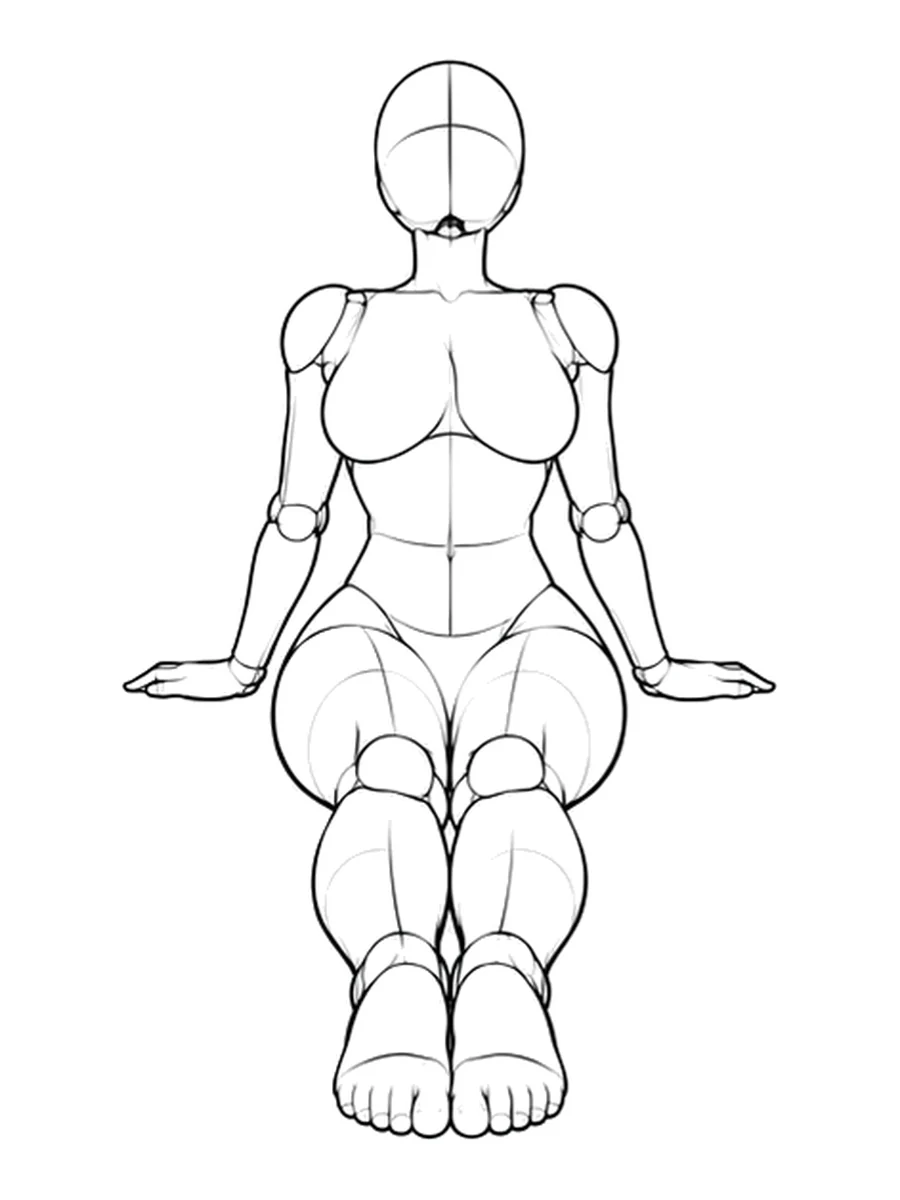
Keep the pose reference separate where supported. Its role is to communicate body arrangement. The pose versus character reference guide explains the two jobs and alternatives for tools that accept only one reference.
Keep the shared setup stable
Record the model and version, reference files, image roles, aspect ratio, complete prompt, and any controls you use. Copy the shared character and wardrobe description into every shot's prompt. Change the pose-specific section deliberately.
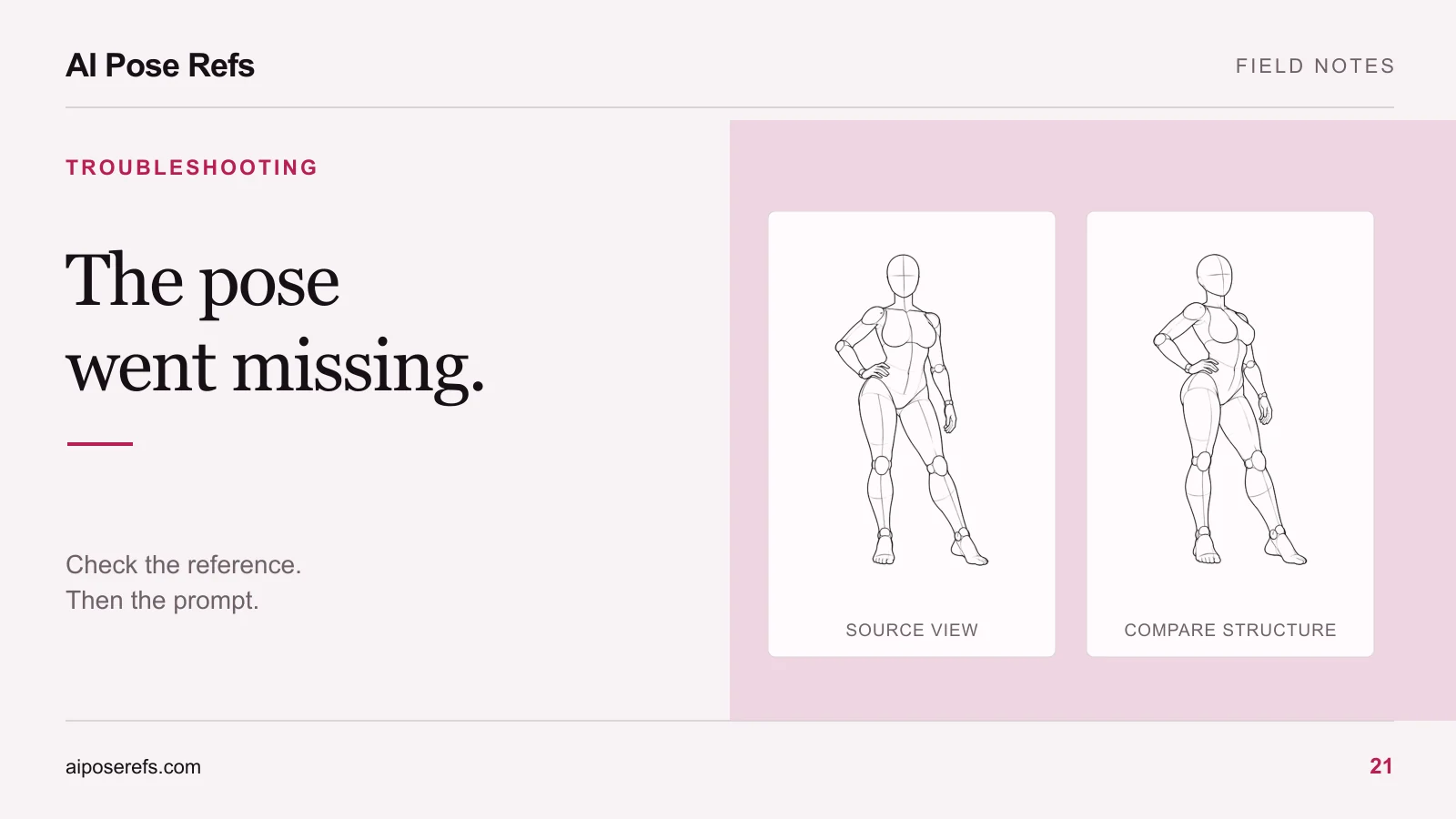
For example, a shared block might describe Lena's face, curls, build, olive suit, and cream shirt. Shot one adds a standing hand-on-hip pose. Shot two adds a seated pose with the hands behind the body. Both retain the same background and light direction during the initial comparison.
A seed, if the tool exposes one, belongs in the record too. Do not treat it as an identity lock. A stored seed does not by itself demonstrate that a changed pose or revised prompt will preserve the person. Keep the accepted source image and complete configuration, then judge the visible result.
The six-shot series workflow shows how to organize shared and per-shot decisions without relying on a previous chat message remaining in context.
Review the set in two sizes
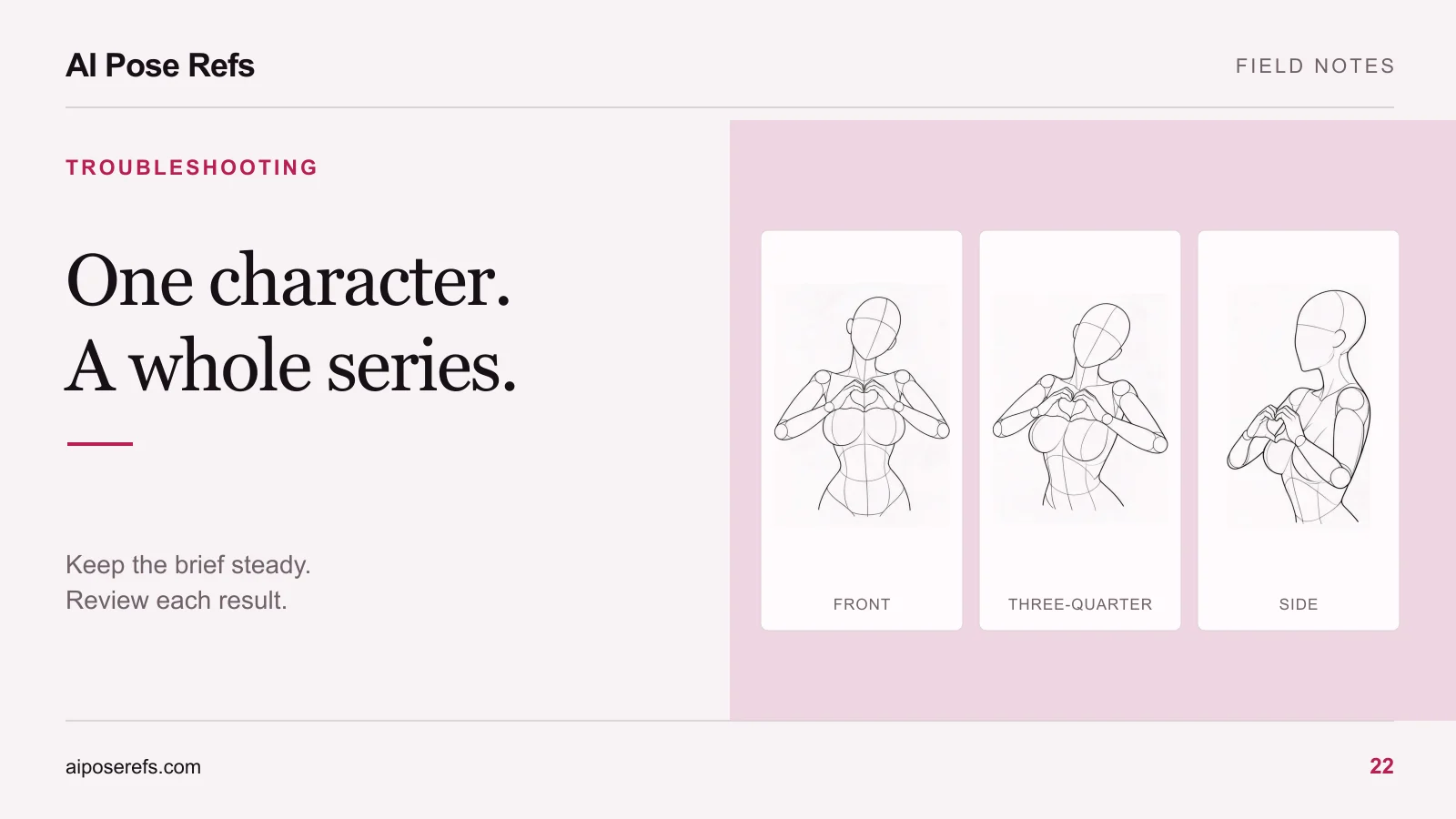
First compare images at the same overall display size. Ask whether the person, outfit, and visual direction feel continuous. This catches large changes such as different hair, a much narrower build, or a suit that becomes a dress.
Then inspect the faces at comparable sizes. A close portrait beside a full-body picture can create a misleading comparison because one face contains far more visible detail. Zoom to compare the face shape and features, but keep camera perspective and expression in mind.
Use a short review log:
| Shot | Identity issue | Clothing issue | Decision |
|---|---|---|---|
| 01 | Accepted reference | Accepted reference | Keep |
| 02 | Hair became longer | None | Revise hair/identity input |
| 03 | Face structure looks different | Jacket lapels changed | Revisit shared setup |
These are example observations, not results from a tested model. Replace them with the specific differences in your own set.
Correct the cause of the drift
If the body position is right but the face has changed, first inspect the identity input and shared brief. Replacing the pose reference may throw away a part that already works. If the outfit changed, compare the garment instructions and any competing details in the source images.
Some tools support edits to a selected area or changes to an accepted portrait. Use those options only according to their documentation, and inspect the rest of the image afterward. A facial correction can affect hair, neckline, or nearby light.
When several shots drift in the same way, return to the shared setup before revising each one separately. When only one unusually angled shot fails, consider whether a different reference angle would still meet the composition goal.
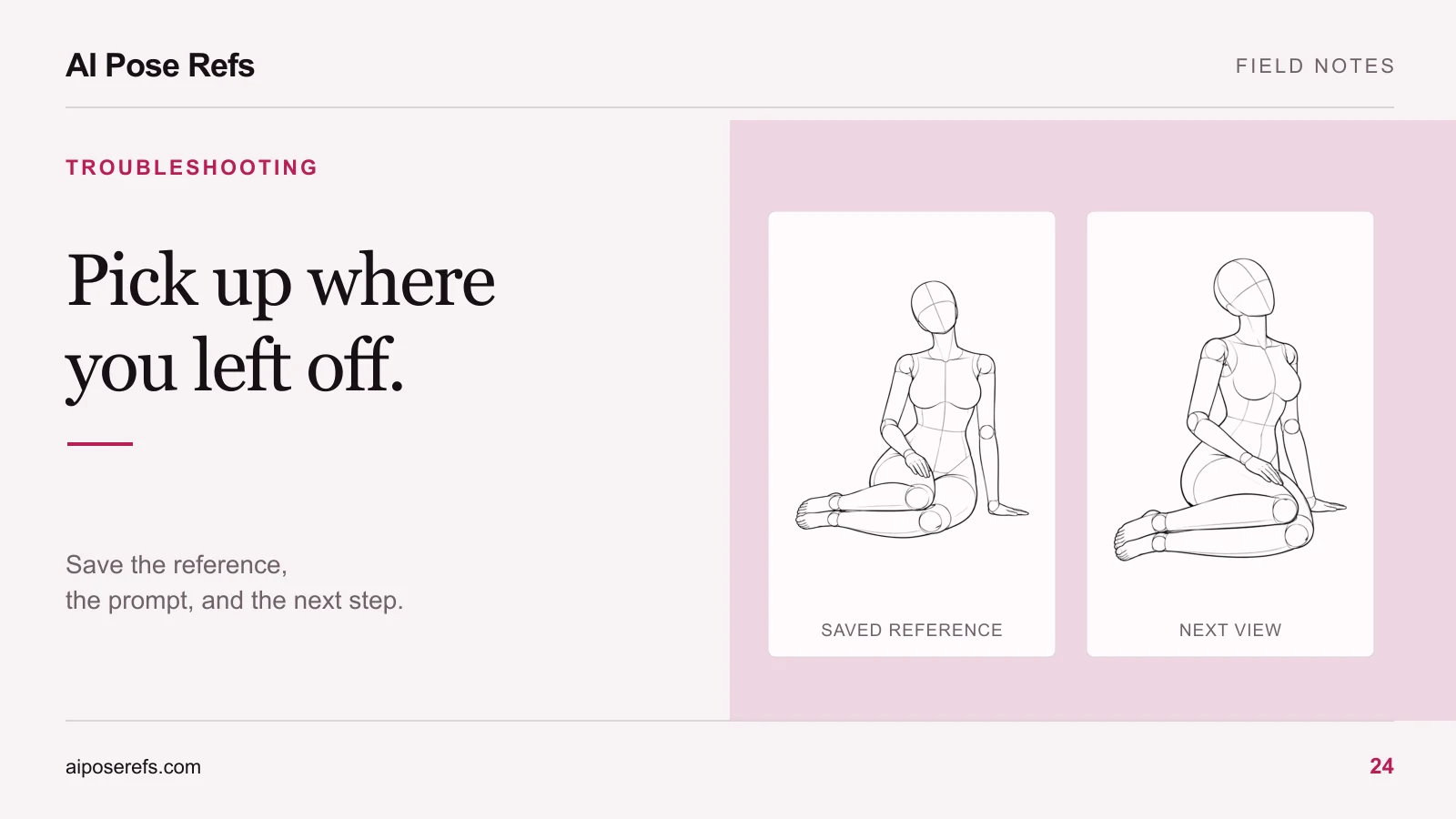
Save the accepted set together with its reference inputs and notes. If you pause the project, the restart checklist will help preserve the decisions you have already made. Choose your next gesture from the gallery once the current set has a consistent character you can recognize.
Related posts
Find pose ideas, plan portrait series, and use references in your own AI image workflow.