Front, side, or three-quarter: choose the right AI pose reference
Compare front, side, and three-quarter pose references, match the camera and crop, and keep the selected image consistent with your AI prompt.
Written by
AI Pose Refs Team
Practical guides to choosing pose references, planning portrait series, and using references in your own AI image workflow.
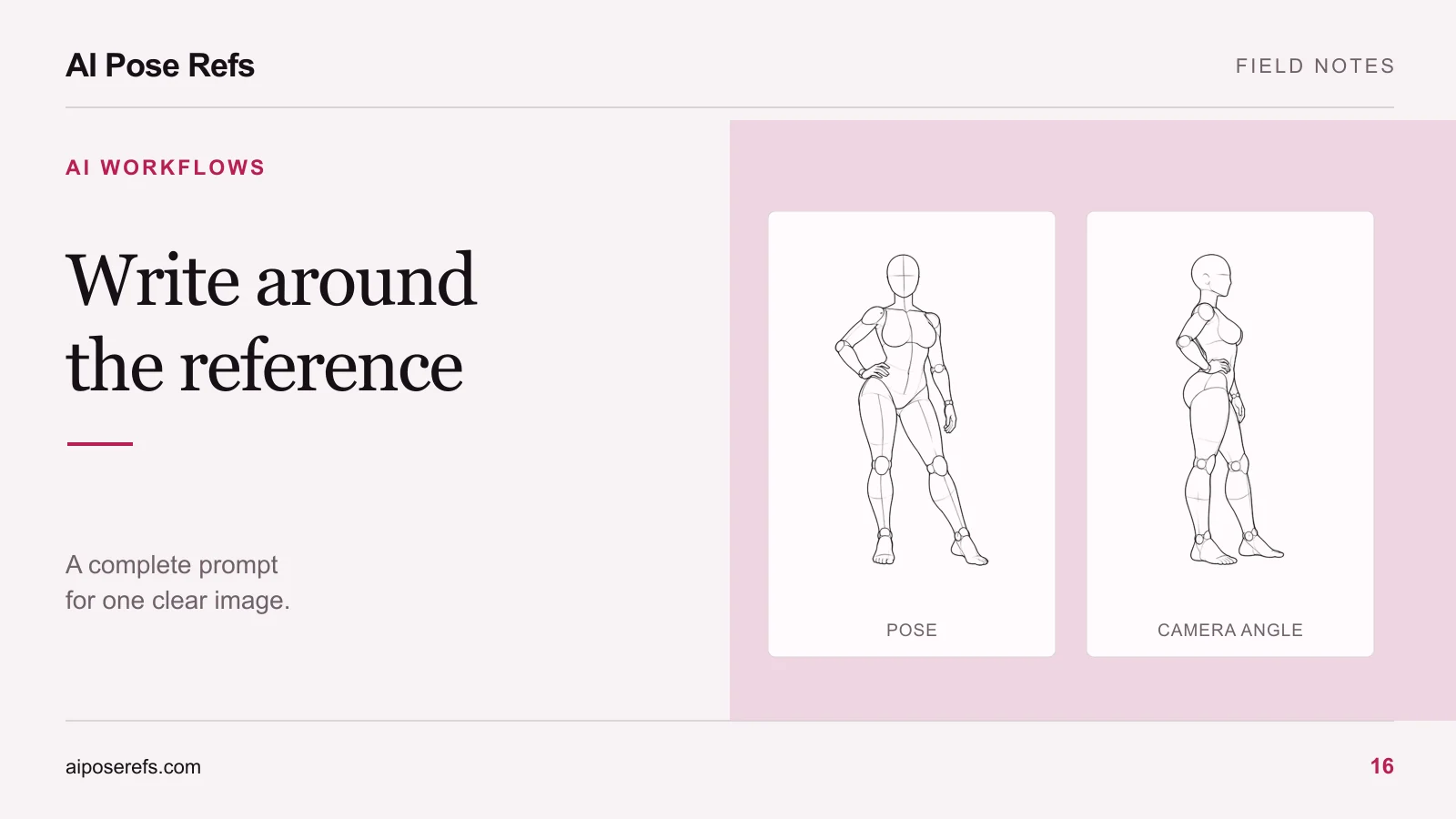
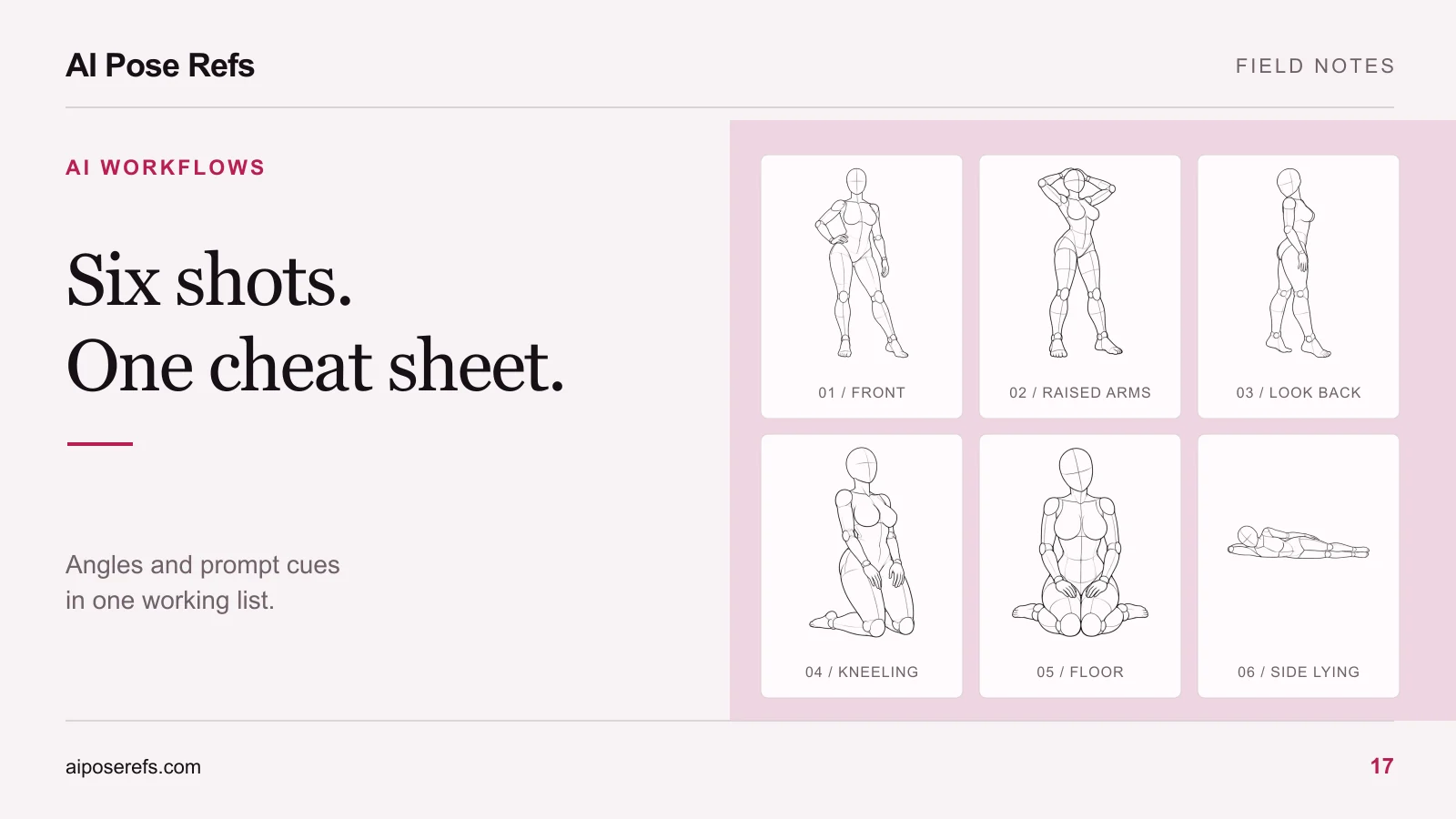
Choose the reference view that is closest to the picture you want to make and shows the body relationships you need to communicate. A front view is useful for reading a stance across the shoulders and hips. A side view can make a bend or support relationship easier to see. A three-quarter view may show more depth while keeping both sides partly visible.
There is no single best angle for every pose. The question is whether the chosen image makes the intended gesture clear at your planned framing. Once you choose it, keep the uploaded reference and the camera wording in your prompt consistent.
Compare views of one pose first
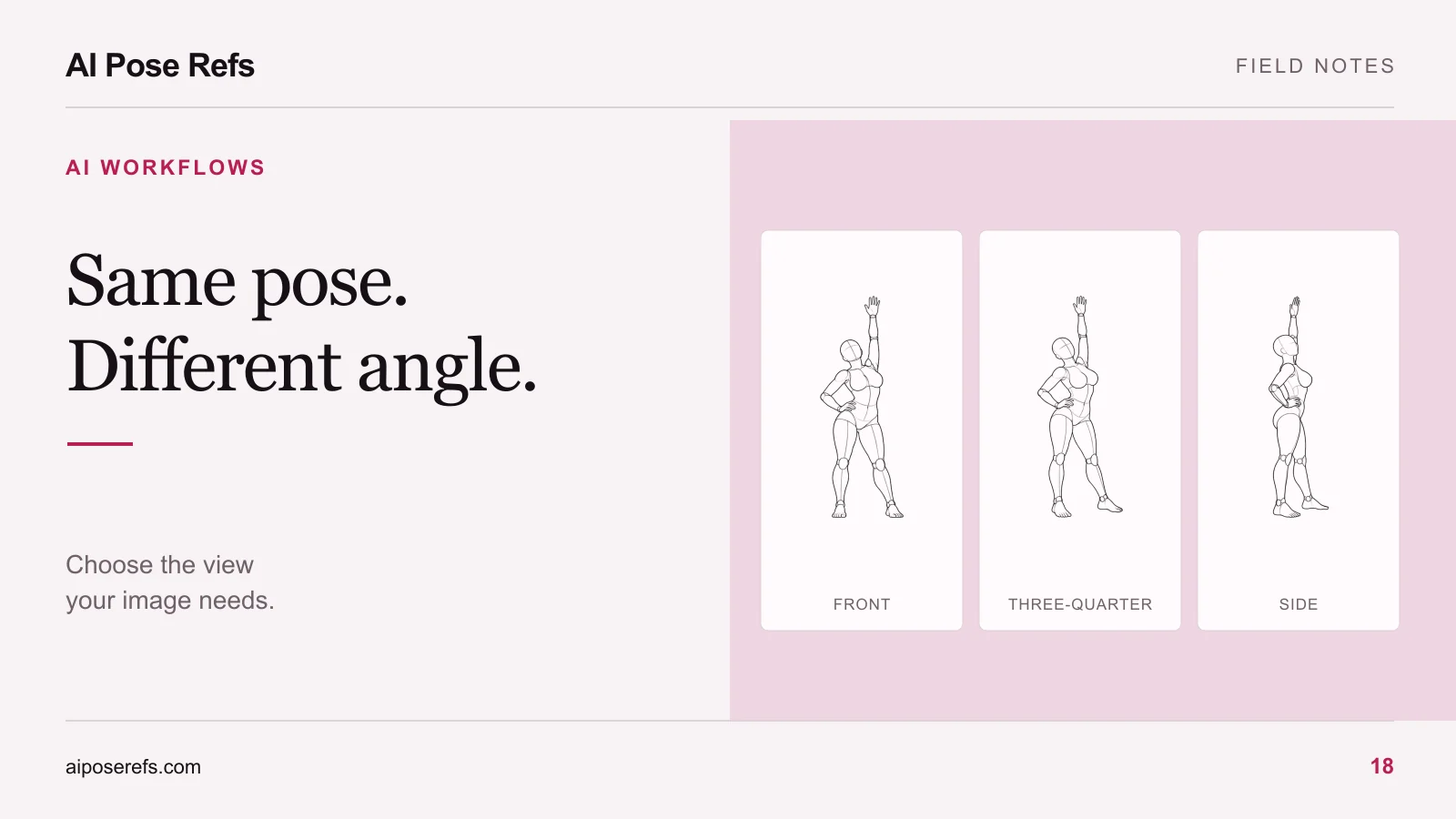
Start with the hand-on-hip reference. Open its Front, Three-quarter, and Side views before comparing unrelated poses. This helps you separate a change of gesture from a change of viewing direction.
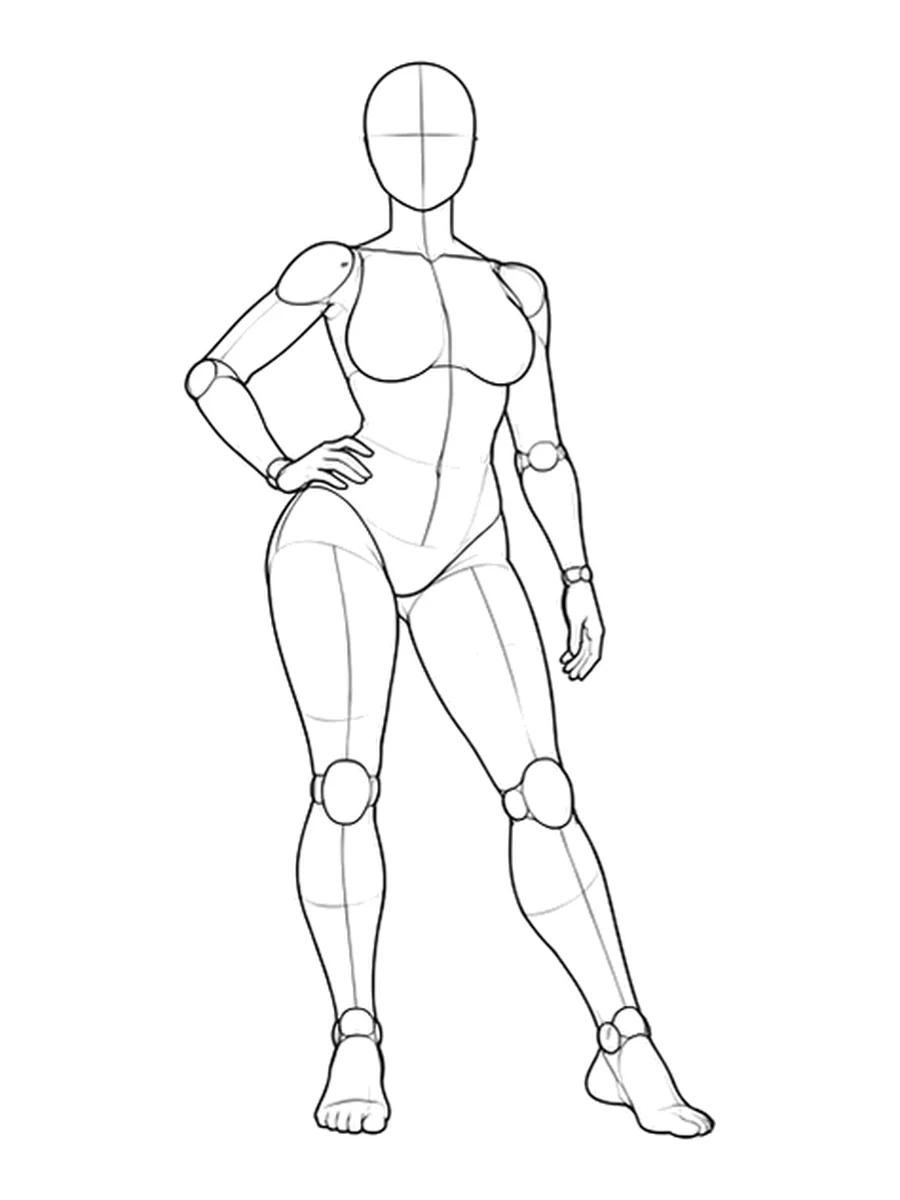
As you switch views, follow the hand, elbow, hip, knee, and foot. Notice where one part hides another. These are drawings rather than a calibrated camera scan, so judge the visible relationships in each image instead of assuming that every contour is an exact rotation of the previous drawing.
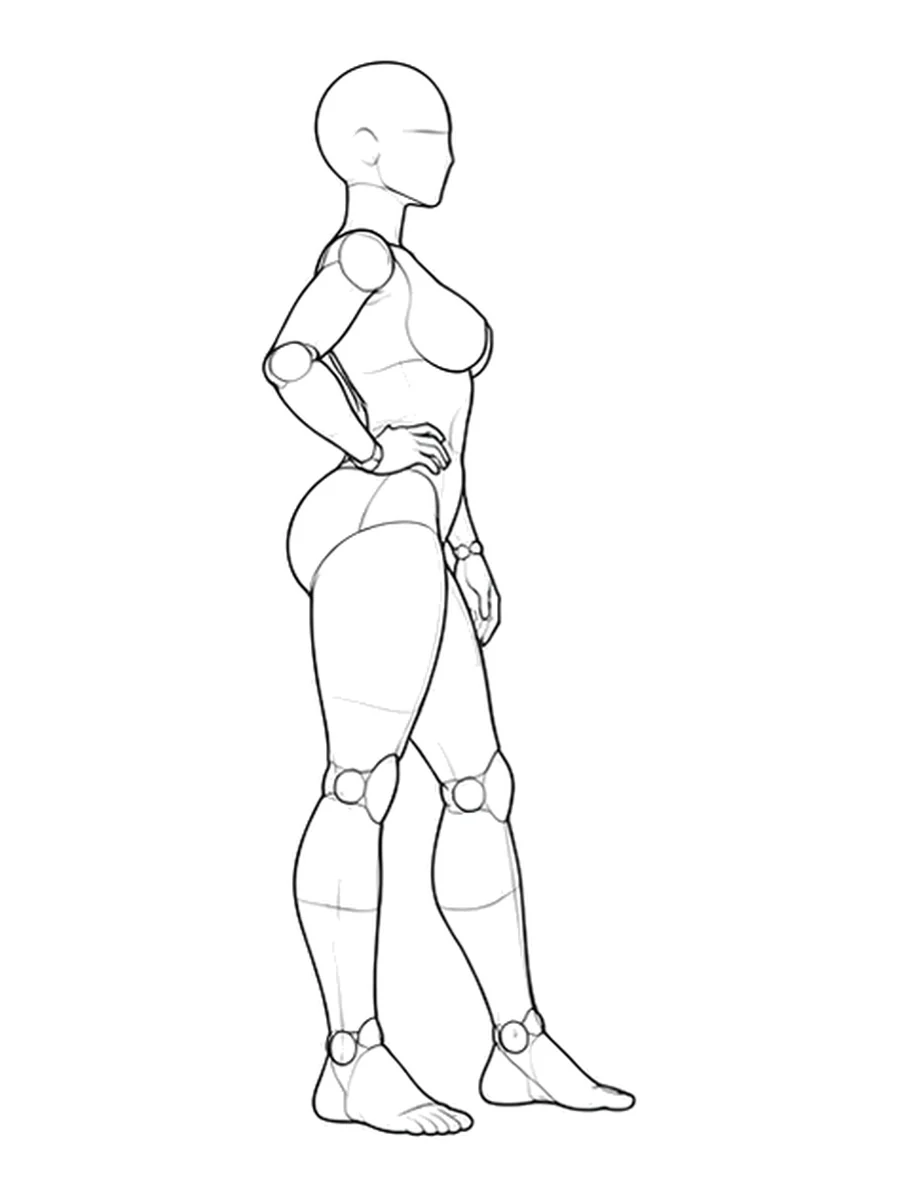
For a new full-body concept, make a short note such as “the hand must remain separate from the waist” or “the bend at the knee must be visible.” That gives you a reason to prefer one reference over another.
What each view can help you read
| View | Often useful for | What to check |
|---|---|---|
| Front | Shoulder and hip contrast, overall stance, separation of arms | Whether depth or overlapping legs becomes unclear |
| Three-quarter | Torso turning, visible depth, a mixture of front and side information | Whether the far hand or leg disappears behind the body |
| Side | Forward or backward bends, profile, alignment of support points | Whether near and far limbs overlap too closely |
| High angle | Looking down toward the figure and arranging the body within the floor space | Whether the head or torso hides important limbs |
| Low angle | A viewpoint below the figure with a stronger upward direction | Whether foreshortening makes the hands, legs, or face hard to read |
These are reasons to inspect a view, not guaranteed properties of every reference. Use the angles available for the individual pose. If one view obscures something essential, try another or choose a different pose.
The standing-pose guide gives examples of judging a silhouette before adding a styled scene. The same approach works for seated and kneeling subjects: find the visual relationship that makes the action legible.
Choose the crop after you choose the viewpoint
Camera direction and framing are separate decisions. A side view can be full body or cropped around the shoulders. A front view can show the feet or omit them. Describe both when you write the prompt.
For a full-body composition, check that the reference includes the extremities and contact points you need. Cropping the bottom from a standing image removes evidence about how the feet support the stance. Cropping a seated image at the hips may conceal whether the body is resting on the floor or on furniture.
For a closer portrait, prioritize the visible shoulders, neck, and hands. You can select a reference with more body visible than the final image, but keep the prompt clear about the intended crop. Do not simultaneously request “full body” and “tight head-and-shoulders portrait.”
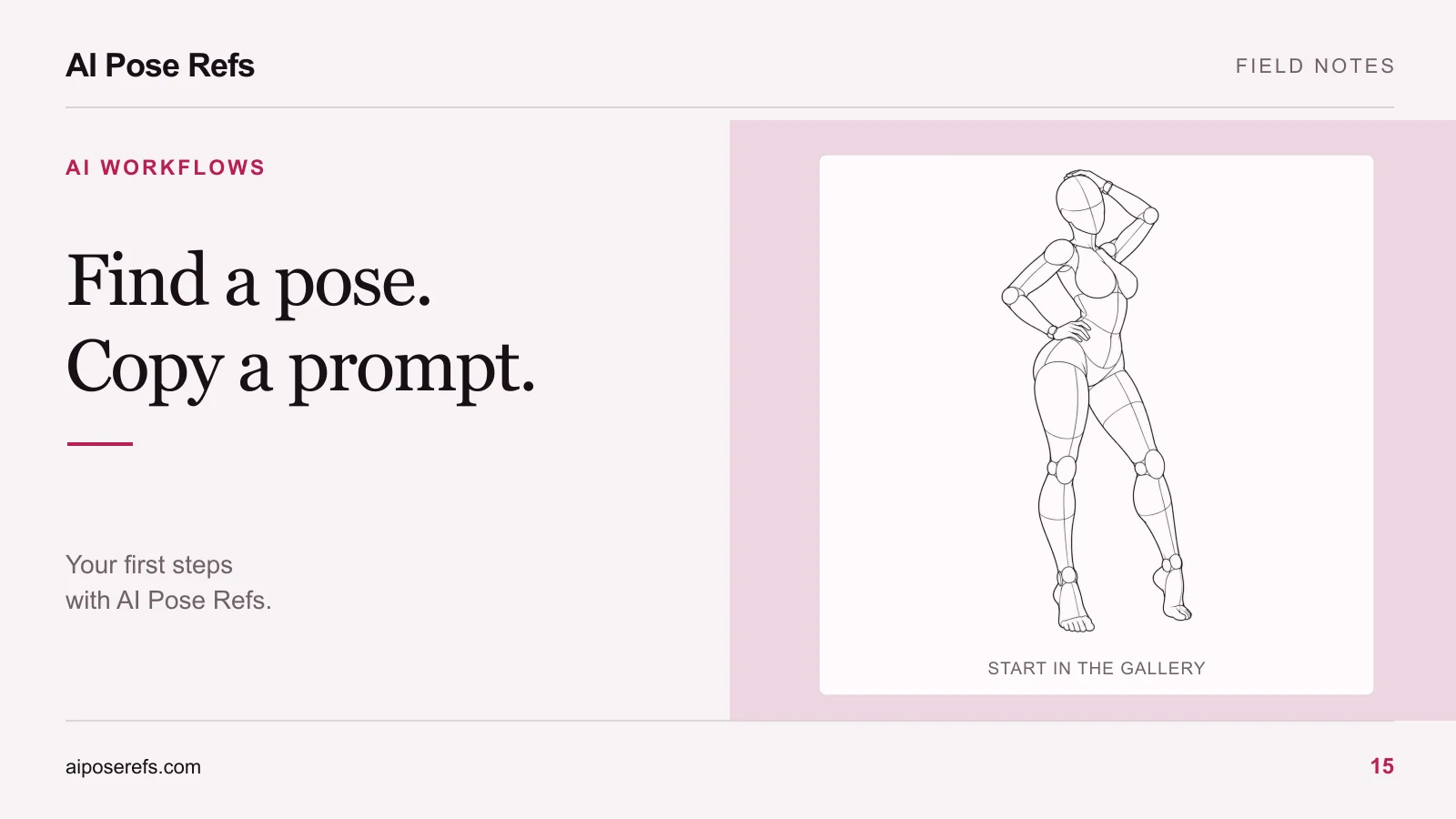
If you are planning several shots, assign each a view and crop in advance. The six-shot posing sheet shows how to keep those decisions next to the reference links.
Update the prompt when you switch views
The pose image you choose and the text you copy are separate inputs. In AI Pose Refs, switching from Front to Side changes the selected image. It does not rewrite the stored starting prompt. Add or change the camera description in your notes or image tool yourself.
For example, this describes one intended composition:
Full-body adult fashion portrait from the side, following the selected
side-view pose reference. Keep the supporting foot and the lowered
hand visible within the frame.
It is an illustrative cue, not a complete tested prompt. Add the character and styling brief using the prompt-writing template, and check the result for contradictions. If the uploaded file is still the front view, resolve that mismatch before generating again.
After using Open image, inspect the file you are about to upload. Include the angle in its local name or record the pose link with its angle parameter. That makes it easier to distinguish several otherwise similar references.
Review the camera match in the result
Compare the output's torso direction, visible shoulder, limb overlaps, and amount of floor shown with the reference. These cues reveal a viewpoint change more clearly than an impression that the result “feels different.”
If the generated body turns toward the camera, check whether the text asks for a frontal portrait or strong eye contact in a way that conflicts with the planned body direction. Clarify the body and head directions separately where needed. If your tool offers a documented reference-strength control, inspect its guidance before changing it; a larger value is not a universal fix.
When the output continues to disregard the selected view, follow the pose-reference troubleshooting sequence. You can also return to the gallery and choose a less ambiguous reference. Keep the view that communicates your intended shot clearly, even when another angle looks more dramatic on its own.
Related posts
Find pose ideas, plan portrait series, and use references in your own AI image workflow.