Fix awkward hands and limbs in AI pose reference workflows
Find the cause of awkward AI hands and limbs, choose clearer pose references, and check local corrections for joint, contact, clothing, and composition errors.
Written by
AI Pose Refs Team
Practical guides to choosing pose references, planning portrait series, and using references in your own AI image workflow.
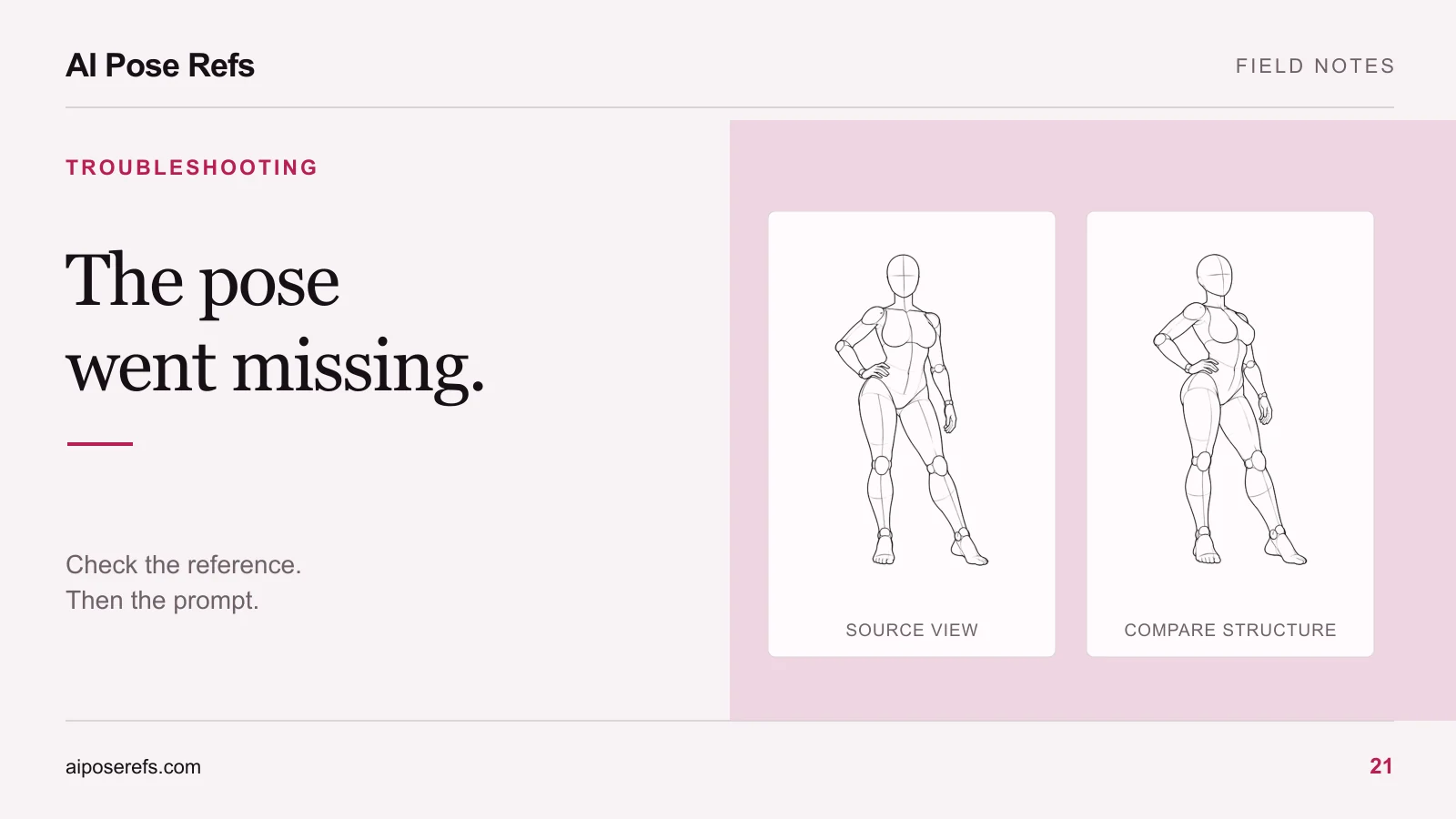
A strange-looking hand is not always a finger problem. The wrist may face the wrong way, the forearm may connect at an impossible angle, or the body may appear to rest on a hand that never touches the floor. Diagnose the relationship around the hand before adding more anatomy instructions.
The same method applies to knees, ankles, and overlapping arms: compare the result with a clear reference, identify the largest structural problem, and correct that problem while preserving the parts that already work.
Follow the limb through the whole image
Start at the shoulder and trace the arm through elbow, wrist, and hand. For a leg, follow hip, knee, ankle, and foot. Check which segments are visible and which are hidden behind the body or clothing.
This is a visual review rather than a medical assessment. You are checking whether the figure reads coherently in the intended artistic pose. A cropped or overlapping limb may be plausible while still being confusing in the composition.
| Visible problem | Relationship to inspect | First revision to consider |
|---|---|---|
| Hand appears detached | Wrist and forearm direction | Clarify the angle or choose a less obstructed view |
| Extra-looking arm | Limb overlap and silhouette | Separate the arms in the reference |
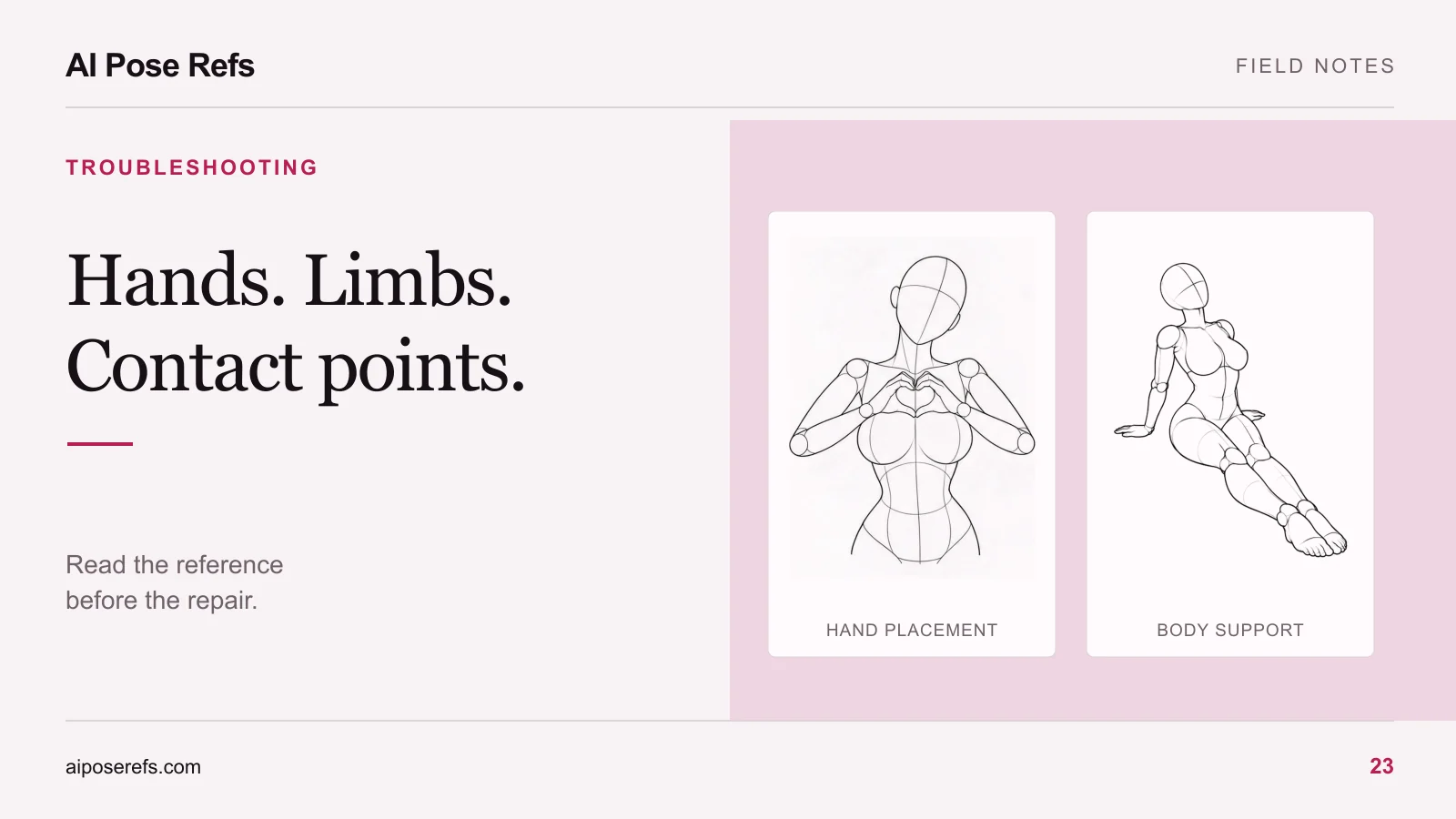
| Floating support hand | Palm, floor, and body weight | Specify the contact point and inspect a side view |
| Bent leg reads backward | Hip, knee, and foot alignment | Compare another angle of the same pose |
| Fingers merge into fabric | Hand position against clothing | Simplify contact or revise the local area |
Do not correct every small detail at once. If the whole arm is misplaced, polishing the fingertips will not fix the gesture.
Use the reference to resolve the ambiguity
The one-hand support reference is a useful example because its pose depends on a visible relationship between hand, torso, and floor. Look at more than one angle if the selected view hides that relationship.
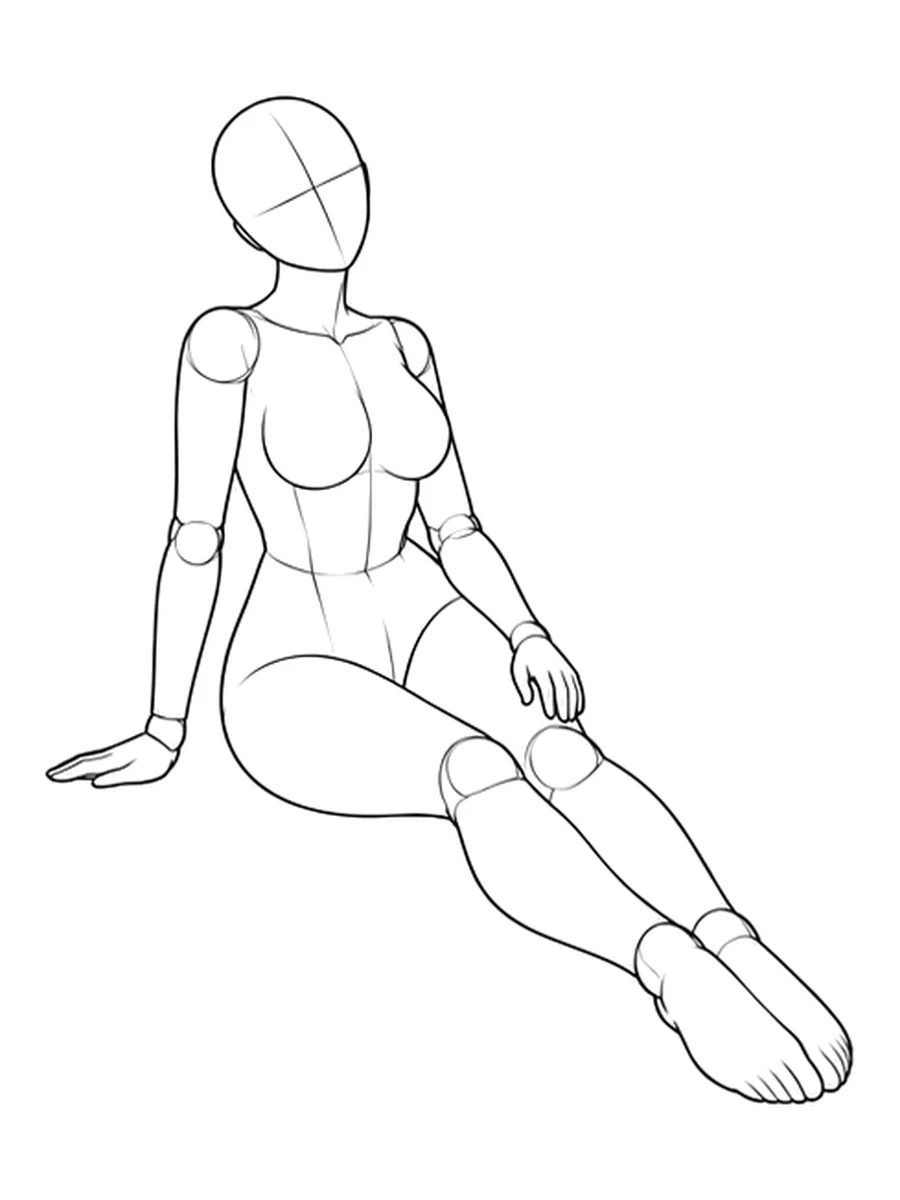
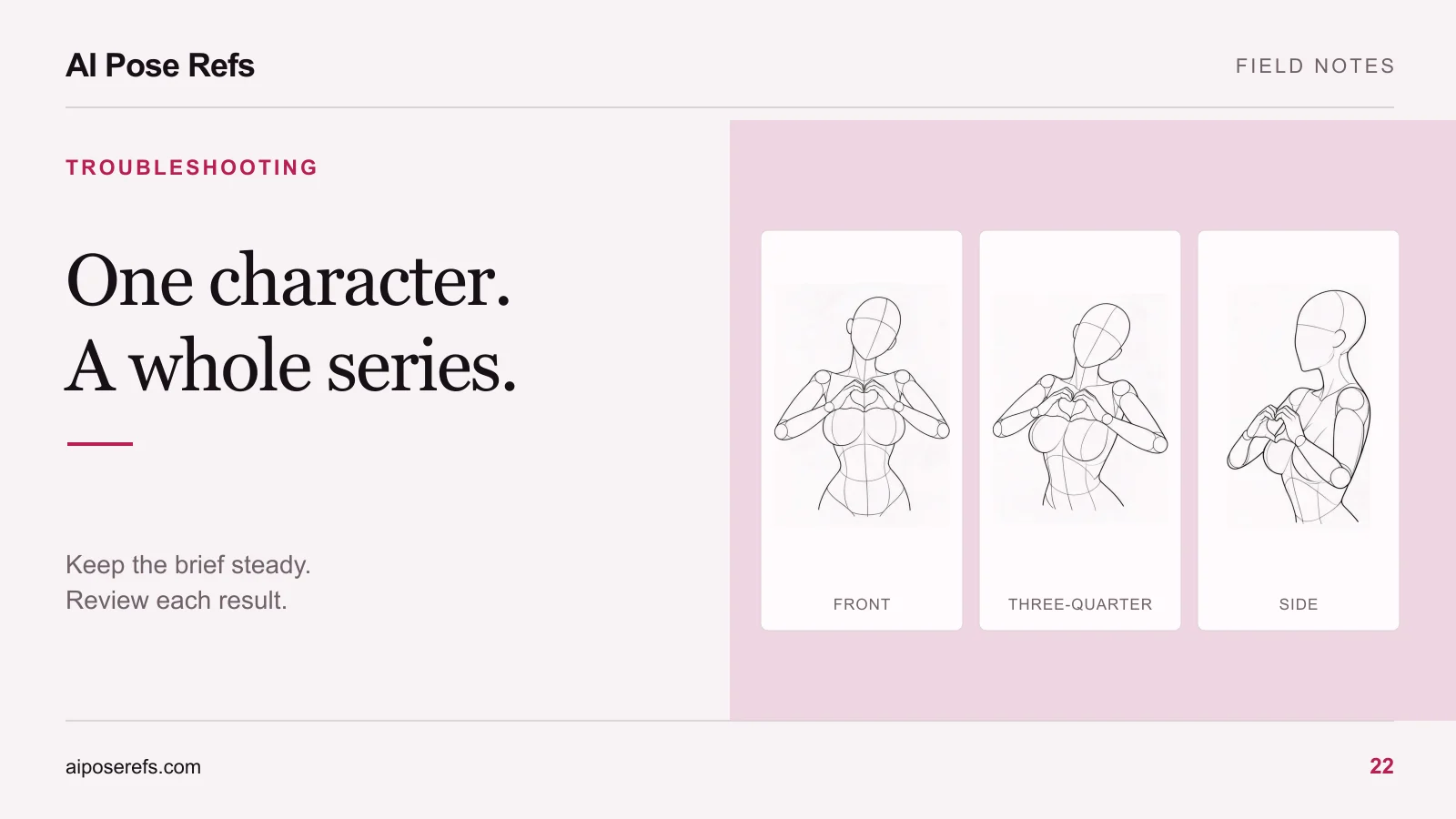
A front view may explain the silhouette while a side view explains depth. Choose the view closest to the camera position you want, then use other views for your own understanding. Do not upload several angles without knowing how your tool interprets multiple images.
If the pose remains hard to read, select a simpler reference. An arm separated from the torso or a hand resting on a plain surface can give you a clearer starting point. The reference angle guide explains how to make this choice without changing the subject of the picture.
Simplify the instruction around the problem
Describe the visible relationship rather than asking for “perfect hands.” An instruction such as “left palm resting flat on the floor beside the hip, wrist connected naturally to the forearm” gives you a specific arrangement to check afterward.
Keep directions consistent with the image. If “left” becomes confusing because you are switching between the viewer's side and the character's side, describe the location in the frame or the relationship to a nearby object. Use the same convention throughout the prompt.
For an illustrative adult fashion portrait, a local pose note could read:
The character is seated with the supporting hand beside the hip. The palm meets the floor, the elbow remains visible, and the other hand rests on the raised knee. Keep both wrists within the frame.
This is a planning example, not a tested correction recipe. If the entire pose is being ignored, use the broader pose debugging workflow before concentrating on a small hand area.
Use local editing only when it fits the tool
If your chosen tool provides a documented local-edit or masked-edit workflow, it may let you revise the affected region while retaining more of the picture. Follow that tool's instructions; there is no universal mask size or setting that works across models.
Include enough surrounding context to judge the connection. A hand repair needs a coherent wrist and nearby forearm. If a finger crosses a sleeve or touches an object, inspect that interaction as well. Keep a copy of the accepted original so you can compare the change or return to it.
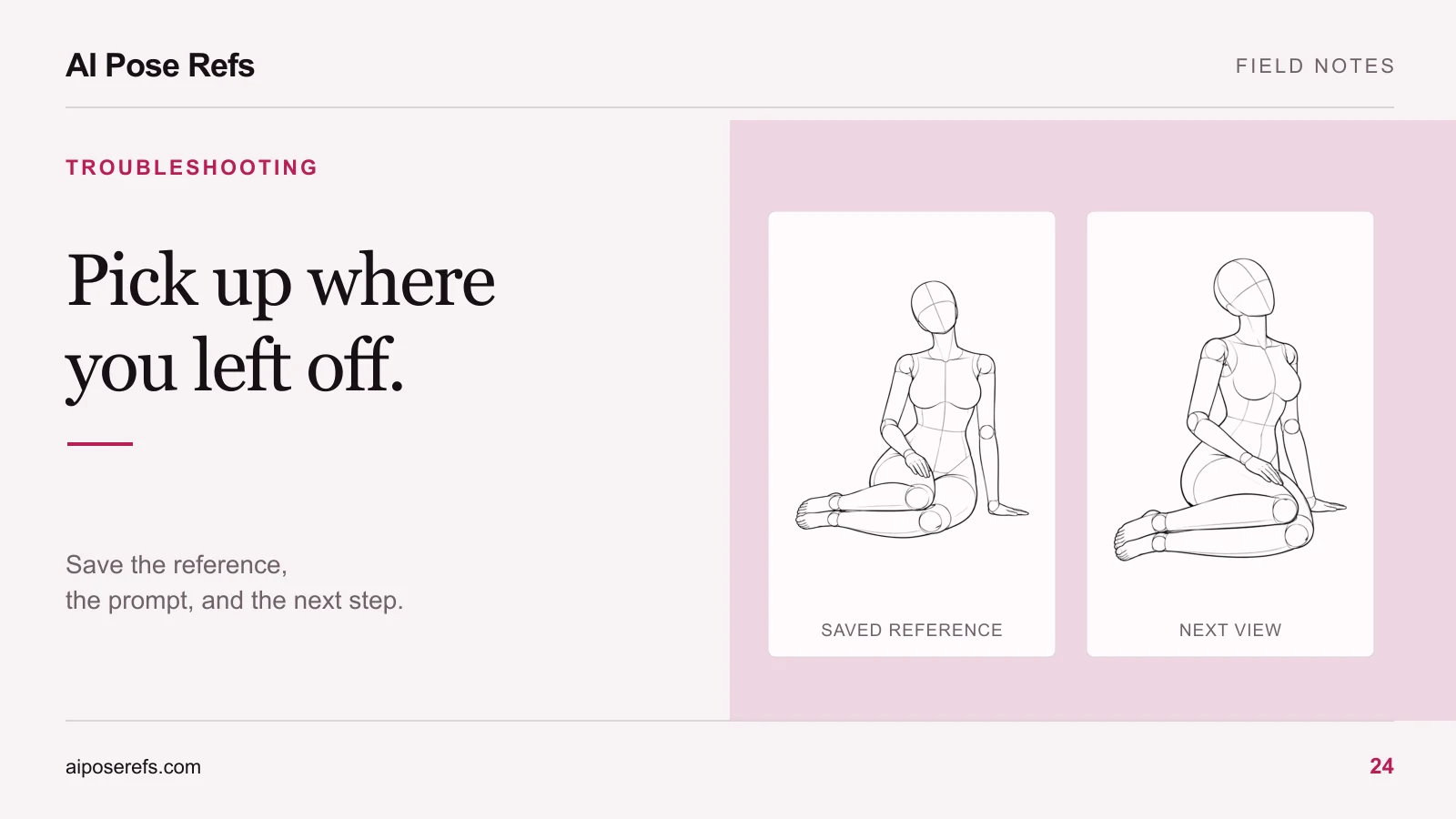
If local editing is unavailable, revise the pose input or generate a new attempt with the relevant instruction simplified. Preserve the complete prompt and input reference so you can tell what changed. The reference-based prompt guide provides a structure for separating the shared portrait description from the current pose.
Check the correction beyond the repaired area
First inspect the joint and contact point at a larger size. Then step back to the full composition. A more detailed hand may still be too large, point in the wrong direction, or interrupt the silhouette.
Look for secondary changes: sleeve edges, jewelry, shadows, nearby furniture, and the person's proportions. In a series, compare the corrected image with neighboring shots so that a repair has not changed the character or wardrobe. Our character consistency guide covers that wider review.
Keep a brief record of useful fixes: the original problem, the reference angle, the instruction changed, and any remaining limitation. Save examples that explain a decision rather than every unsuccessful variation.
Return to the gallery when the existing reference hides the relationship you need. A clearer gesture often makes the whole process easier to evaluate. The goal is a believable, readable figure in the finished composition, not a longer prompt or a larger pile of near-identical attempts.
Related posts
Find pose ideas, plan portrait series, and use references in your own AI image workflow.