Why your AI image ignores the pose reference
Diagnose an AI pose mismatch by checking reference inputs, conflicting prompts, camera angles, and guidance controls through a small, controlled comparison.
Written by
AI Pose Refs Team
Practical guides to choosing pose references, planning portrait series, and using references in your own AI image workflow.
When an AI image misses a pose, check the input and the written brief before making the prompt longer. The wrong reference role, a conflicting camera direction, or a hidden joint can each produce a different kind of mismatch.
There is also a limit to what “reference” means. Midjourney describes image prompts as inspiration rather than exact copying. Midjourney Image Prompts documentation. Other tools expose different controls, so judge the result against the documented function of the input you used.
Describe the mismatch before changing anything
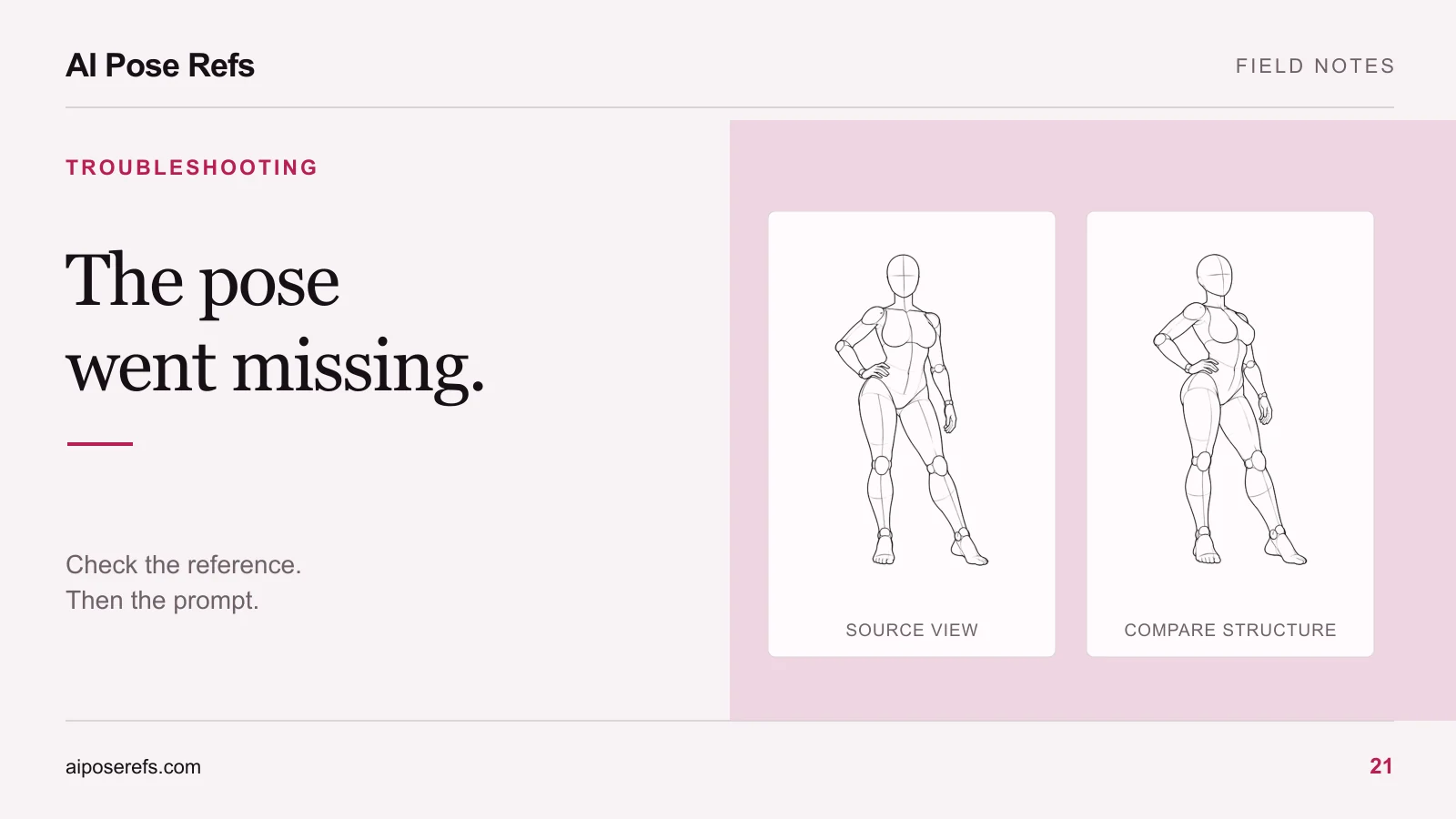
Put the reference and result next to each other. Name the largest difference in ordinary language: the body faces the wrong way, the raised arm is lowered, the figure stands instead of sits, or the camera moved from side to front.
Avoid calling the entire result “wrong” when only one relationship failed. A clear diagnosis lets you choose an intervention with a purpose.
| What you see | What to inspect first |
|---|---|
| Almost no similarity to the pose | Whether the image reached a supported composition input |
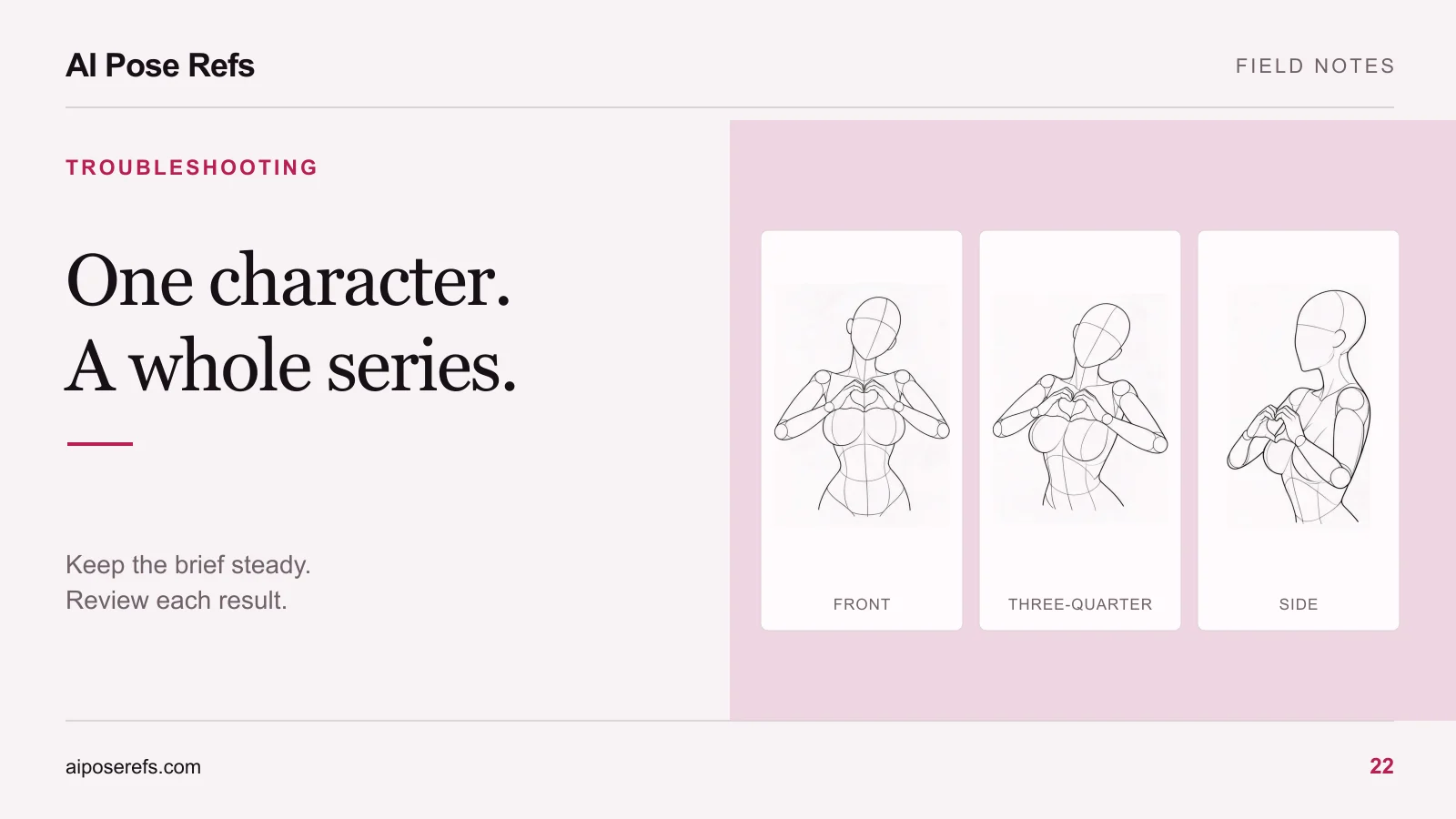
| Correct gesture, different viewpoint | Reference angle and camera wording |
| One limb takes an unexpected position | Visibility and overlap around that joint |
| Pose is close, but styling resembles the mannequin | Inherited mannequin or line-art wording |
| Pose works, but the person changes | Character input and identity brief |
The last case belongs to a different task. Follow the character consistency guide instead of repeatedly changing a pose that already works.
Confirm what the tool actually received
Open the input preview and verify the file. A plausible-looking thumbnail can hide an old angle or a reference left over from a previous attempt. Check the original image, the selected crop, and any active image attachments.
Then inspect the role. An image assigned as a style reference may communicate its visual treatment without being used as a dedicated pose constraint. The pose versus character reference guide explains why separating input roles matters.
Check whether the tool accepts the image type and whether the upload finished. If you supplied a link rather than a file, use the documented link format and confirm that the service can access it. Do not assume that a local browser preview means another service can read a private URL.
Remove contradictory text
Read only the instructions about body position and camera angle. If the image shows a seated side view but the prompt asks for “front-facing standing portrait,” you have asked for incompatible arrangements.
Replace several overlapping descriptions with one clear statement. For example, start with “seated with both hands behind the body, full figure visible” rather than combining “leaning forward,” “relaxed recline,” and “upright posture.” You can add finer stylistic decisions after the spatial brief is coherent.
If you copied a gallery prompt, remember that it may describe a drawing mannequin. Replace those styling terms in your own tool when the goal is a clothed editorial portrait. The complete prompt walkthrough shows how to preserve the pose description while changing the subject and medium.
Make the reference easier to read
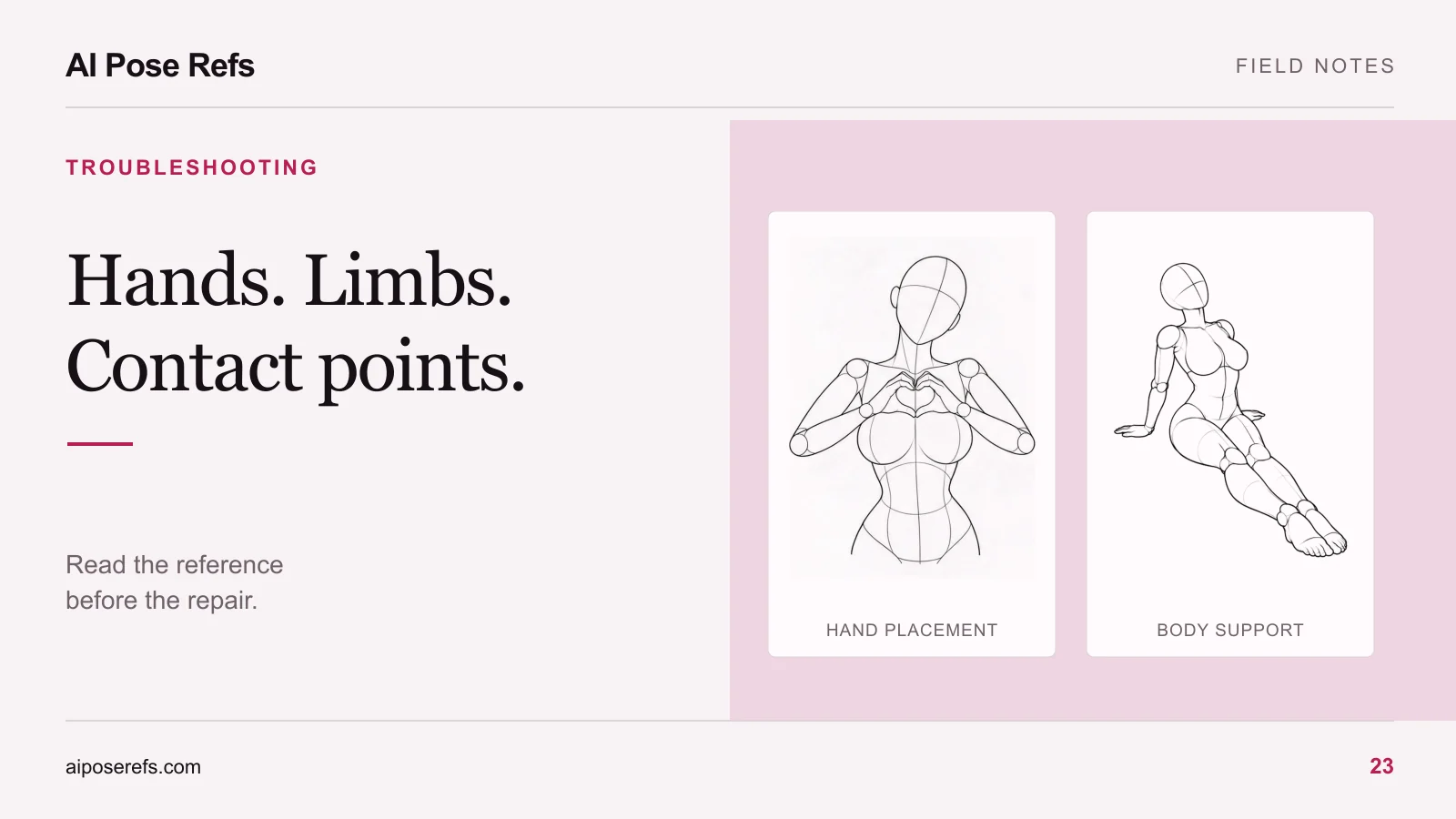
An angle with overlapping arms or hidden support points is a harder reference to inspect yourself. Look at another view before asking the model to infer those relationships.
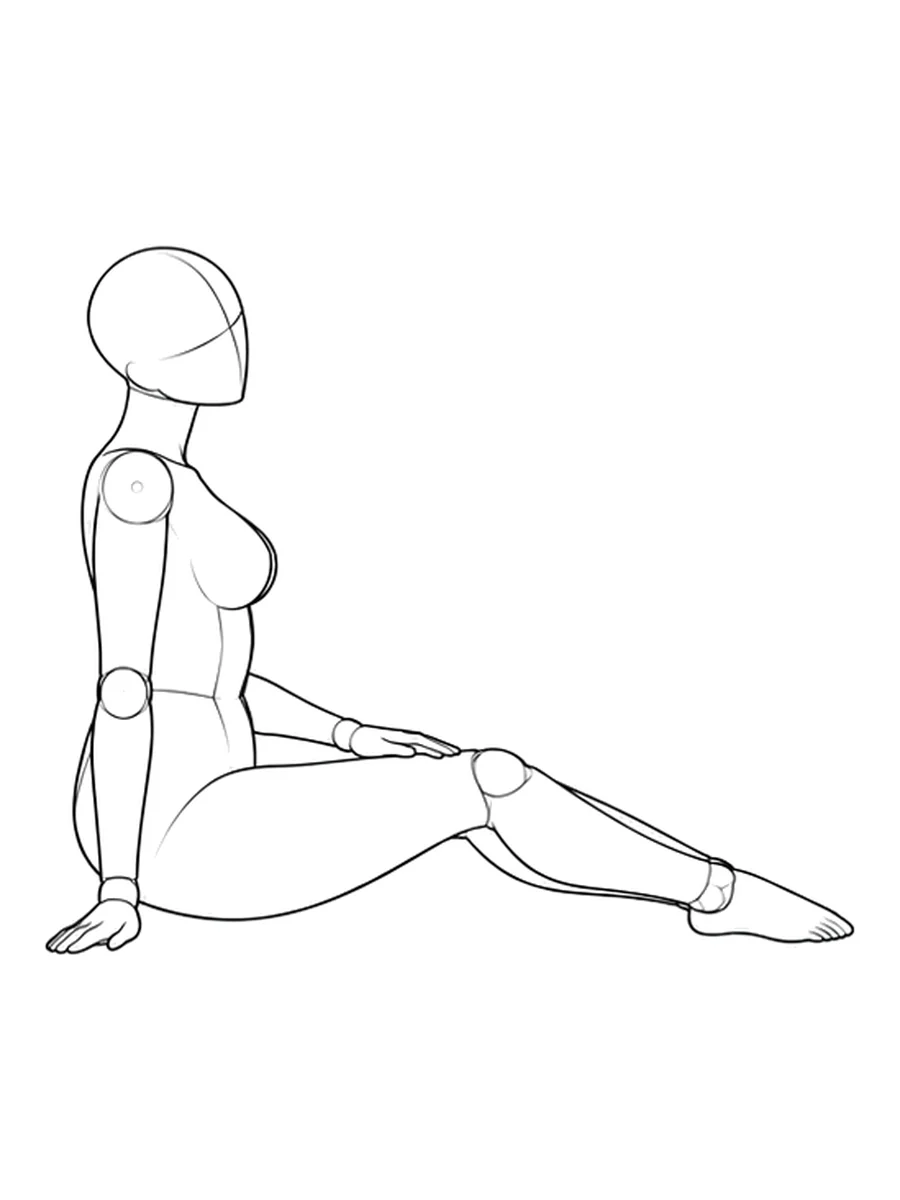
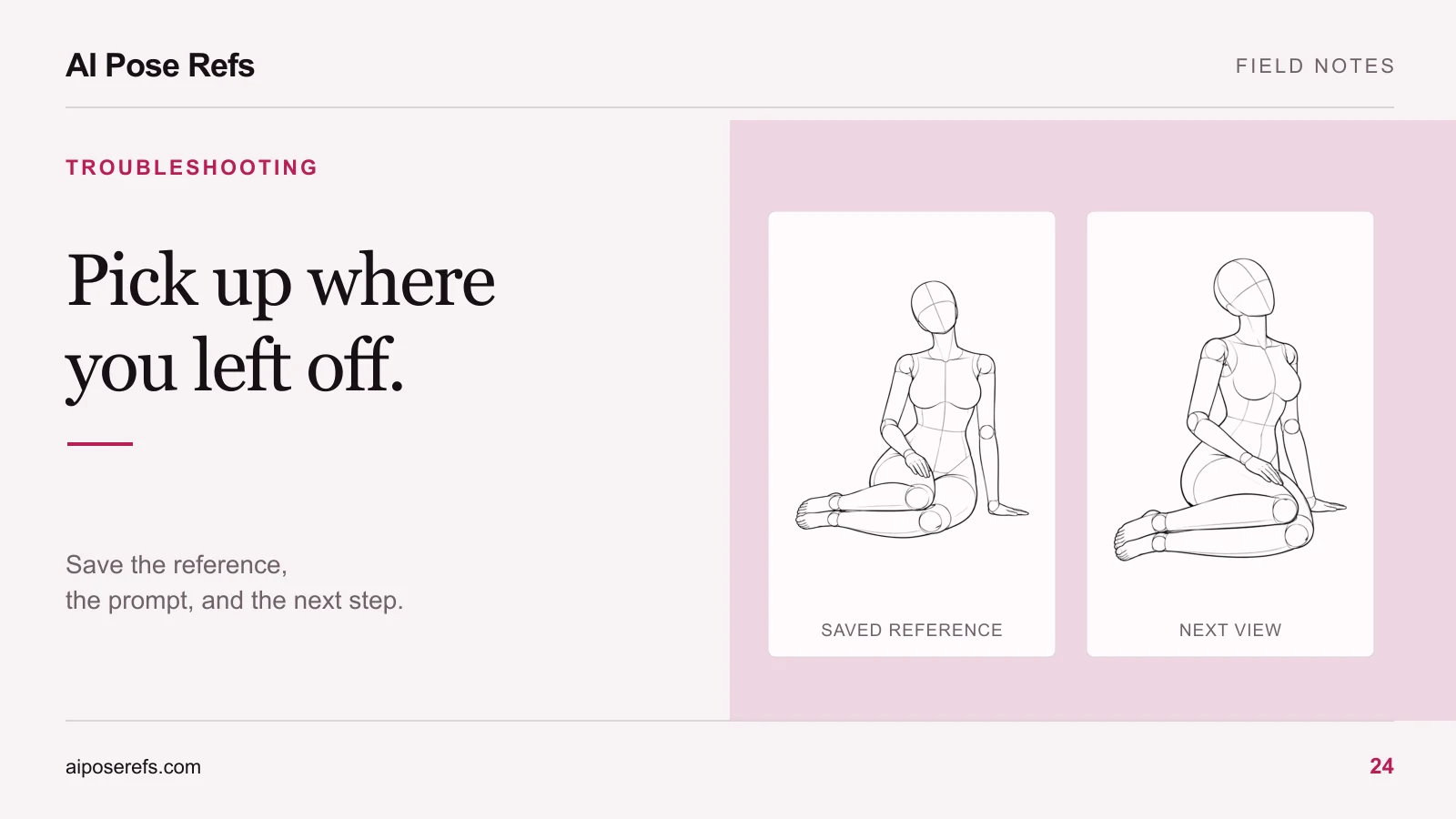
For this kind of supported pose, compare where the hand touches the floor and how far the torso leans. If the chosen camera hides the supporting arm, another view may make the intended relationship clearer. Choose a new angle only if it still fits your composition.
A close crop can also remove information. Keep the relevant joint and its neighboring body segments visible while diagnosing the pose. A hand without its wrist and forearm gives you less context for judging orientation. See how to choose the reference angle for a more deliberate comparison.
Run a small controlled comparison
Keep the model, character description, wardrobe, and background fixed for the comparison. Change one input at a time. Where the tool supports repeatable settings, record them; do not treat them as a promise of identical results.
| Attempt | Deliberate change | Question to answer |
|---|---|---|
| Baseline | None | What exactly failed? |
| Prompt revision | Remove conflicting pose or camera terms | Did the intended arrangement become clearer? |
| Reference revision | Use a less obstructed view | Did the missing relationship improve? |
| Guidance revision | Adjust one documented reference control | Did adherence improve without breaking other details? |
Use the actual supported range for a guidance control. Higher values are not automatically better, and a number from another model's tutorial may mean something different in your tool.
Write the outcome beside each attempt. “Arm position closer, face changed” is a useful record. “Better” is difficult to act on.
Know when to choose a different pose
If repeated controlled attempts miss the same relationship, simplify the pose or choose a workflow designed for stronger structural control. That is a practical choice, not proof that the reference is unusable everywhere.
Return to the pose gallery with a narrower requirement, such as a clearly visible supporting hand or a standing silhouette with separated arms. Keep the failed case and its notes if you want to revisit it later. Stop changing unrelated settings once you know which relationship your current workflow is failing to preserve.
Related posts
Find pose ideas, plan portrait series, and use references in your own AI image workflow.