How to choose a pose reference pack for your AI image tool
Check pose-pack compatibility through image inputs, supported formats, reference controls, model versions, and a small sample test in your own AI tool.
Written by
AI Pose Refs Team
Practical guides to choosing pose references, planning portrait series, and using references in your own AI image workflow.
A pose reference pack is compatible with your workflow when you can identify what to upload, where to upload it, and which instructions apply to your tool. A file ending in JPG or WebP establishes an image format. It does not establish how precisely the tool will use the pose.
Check compatibility before comparing collection sizes. One successful sample can answer practical questions that a long list of “AI-ready” files leaves unresolved.
Find the correct kind of image input
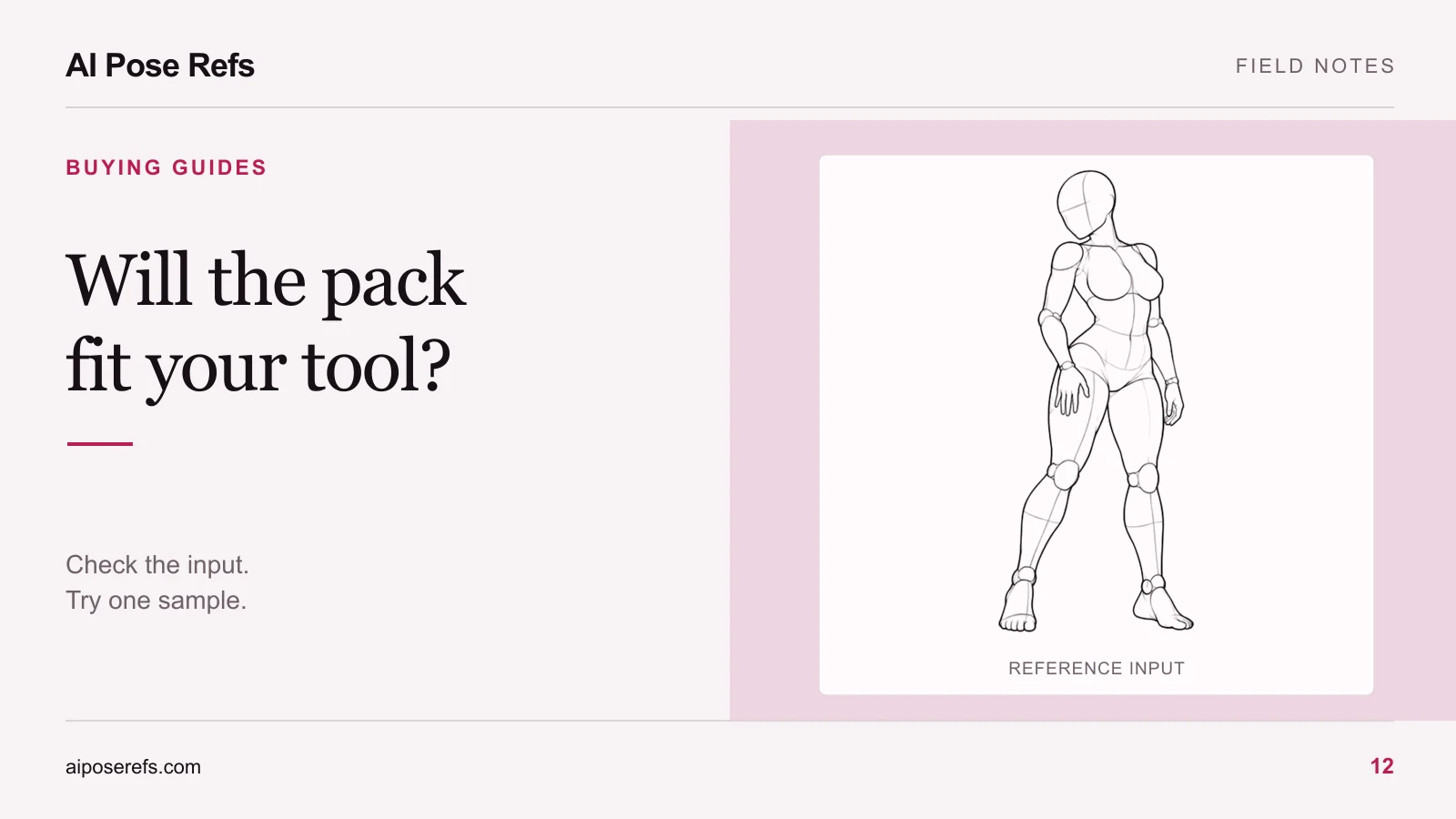
Open the documentation for the tool and model you actually use. Look for the purpose of each image input. A style reference may guide visual treatment, while a composition reference concerns arrangement. A character input has another job again.
Do not choose an upload slot only because it accepts a picture. If your goal is a particular body arrangement, find out whether the tool supports composition guidance, a dedicated pose control, or only general image inspiration.
For example, Adobe's composition-reference documentation describes matching outline and depth, with a control for adherence. Midjourney's image-prompt documentation describes references as guidance rather than exact copies. These are examples of why input semantics matter, not promises that the tools handle every subject or workflow identically.
If you also need a recognizable original character, read the pose-versus-character reference guide. Confirm whether your chosen setup supports those roles together before buying a product that assumes multiple images.
Check the files you will actually open
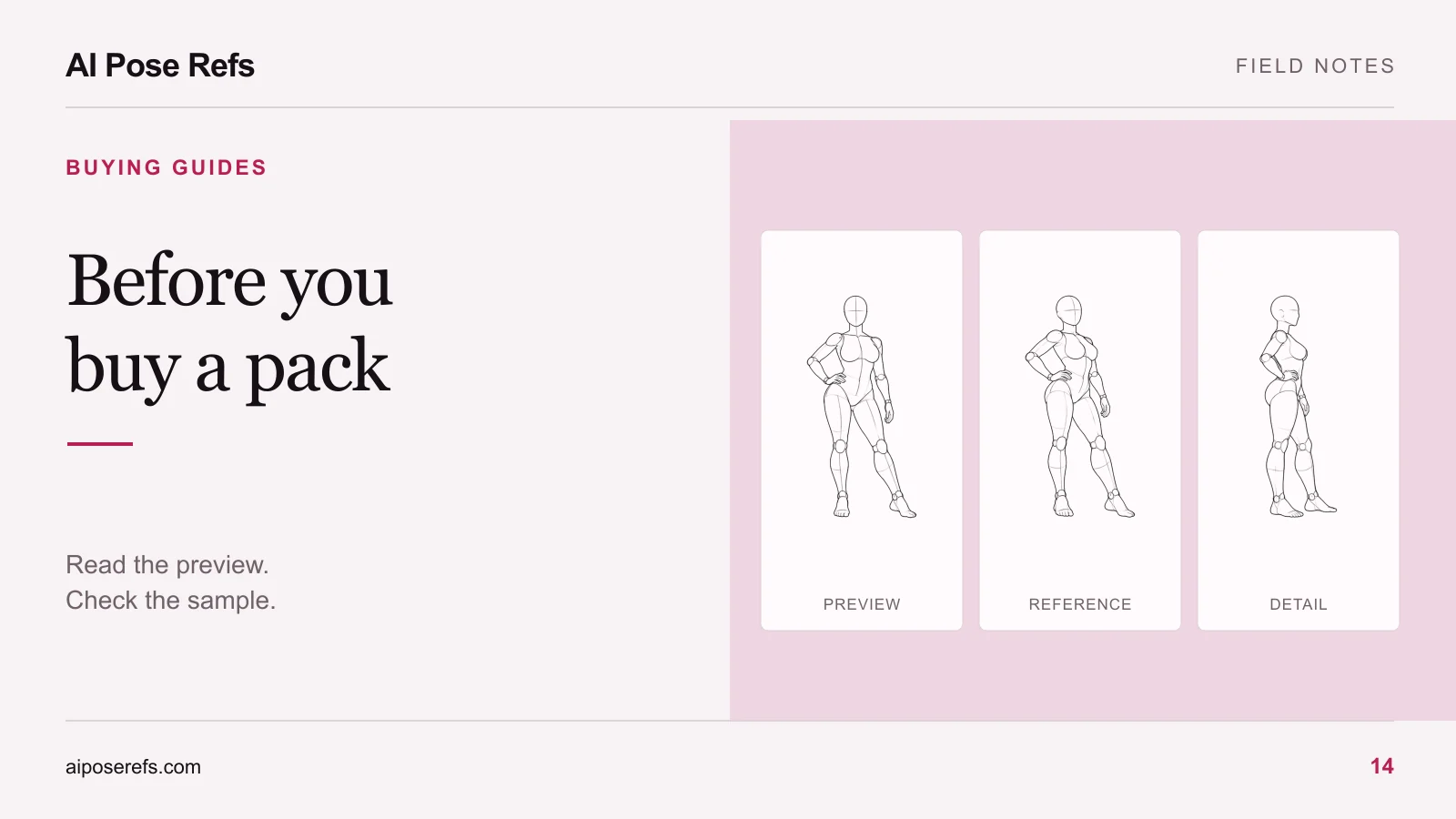
Find a downloadable sample or a precise file description. Check format, dimensions, crop, and whether the image contains the body information your project needs.
| Question | What to verify |
|---|---|
| Does the tool accept the image? | Supported formats and upload limits in its current documentation |
| Is the body arrangement visible? | Relevant limbs, contact points, and enough space around the figure |
| Is the camera view suitable? | A source angle close to your intended result |
| Does the aspect ratio create a problem? | Whether fitting the image would crop important information |
| Are input roles clear? | Which file is the pose source, character source, or example result |
| Can you return to this setup? | Stable file names and a record of the tool and model |
A higher-resolution file is not automatically a more useful pose reference. If the hand is hidden behind the torso, more pixels will not reveal its placement. Compare available views instead, using the camera-angle guide when you need to choose between them.
Distinguish a general pack from a workflow package
A general pack might contain images, written prompts, and a shot list. You adapt those materials to a tool that accepts the relevant inputs. That flexibility is useful, but it leaves some setup work to you.
A tool-specific package may include an importable workflow and instructions for named components. In that case, check the software version, required models, extensions, and input paths. Confirm which components are included and which you must obtain separately.
Do not treat a workflow file as a complete environment. It can refer to a model or resource that is absent from your installation. Conversely, a plain image-and-text pack may be perfectly suitable when you prefer a manual process and do not need automation.
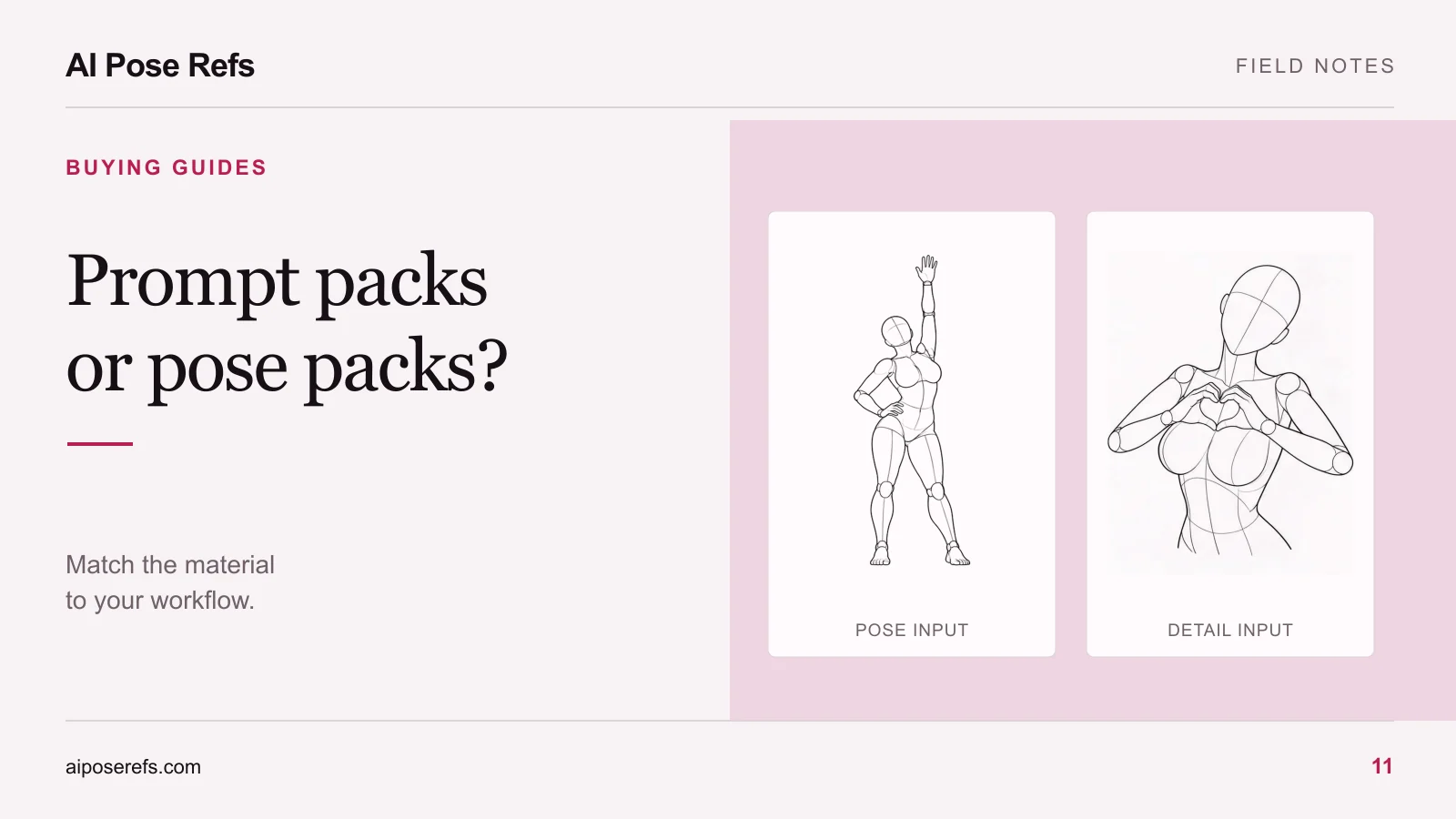
Our comparison of prompt packs and pose reference packs explains these deliverable types. Choose the one that matches how you already work, or account for the learning involved in changing your setup.
Run one sample through the full input path
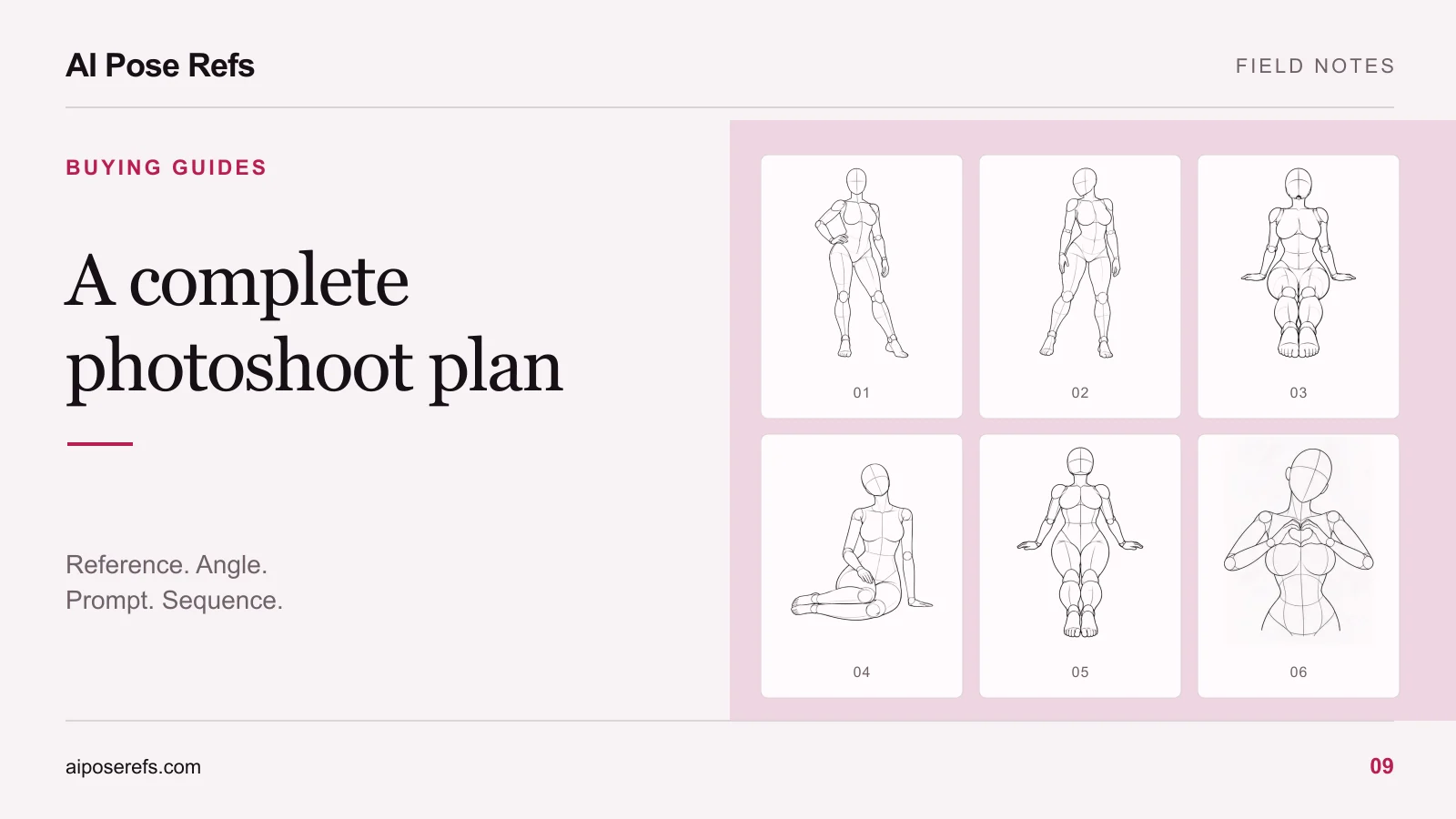
Use a simple, non-explicit adult fashion portrait as a compatibility test. Choose a reference with a clear pose and visible support points. The seated reference with one-hand support offers a useful arrangement to inspect.
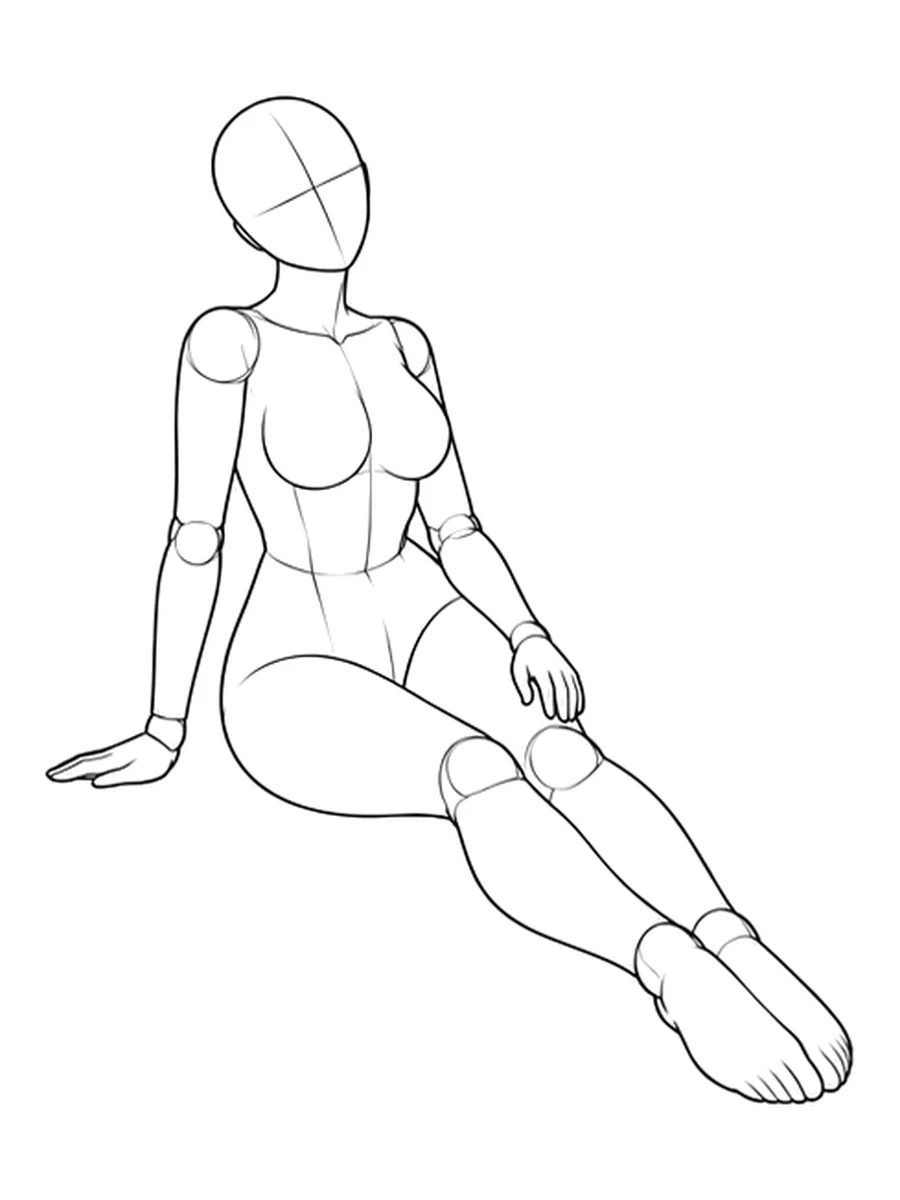
Record the selected angle, input slot, model, and relevant settings. Upload the permitted image and add a complete prompt that agrees with it. Describe your intended clothing, scene, and camera view without asking for a contradictory body arrangement.
Inspect the result against a short checklist: supporting hand visible, torso direction understandable, legs arranged coherently, and camera reasonably close to the reference. Decide in advance which details matter to the project. Exact joint placement and a broad compositional resemblance are different acceptance criteria.
If the first result misses the goal, change one variable at a time. Try a clearer reference or adjust a documented guidance control. Keep a note of the change so you can distinguish a repeatable improvement from a result you happen to prefer.
Make the purchase decision from the test
The sample should tell you whether the materials can enter your workflow and whether their level of control is useful. A clean upload followed by a poor pose match is partial compatibility, not proof that the whole project is solved.
If you cannot identify the intended input path, ask the seller for a concrete example using the relevant tool and version. If the workflow needs components you do not want to manage, choose a simpler delivery format.
Once compatibility is clear, assess preview quality, included files, and purchase terms with the pack buying checklist. Those checks answer whether the product is worth buying; this test answers whether you can use it.
Begin with one reference from the gallery, keep the test notes beside it, and repeat the same process whenever you change your image tool or model.
Related posts
Find pose ideas, plan portrait series, and use references in your own AI image workflow.