Before buying an AI photoshoot pack: check the preview and sample
Inspect an AI photoshoot pack's previews, sample files, prompts, image dimensions, and instructions so you know what you will receive before buying.
Written by
AI Pose Refs Team
Practical guides to choosing pose references, planning portrait series, and using references in your own AI image workflow.
A polished preview tells you what a seller wants the series to look like. A useful sample tells you what you receive and how you are expected to use it. Check both before buying an AI photoshoot pack, particularly when the examples show finished portraits but the download contains reference images and text.
The aim is to connect a displayed result to the inputs that support it. You do not need a seller to promise identical images. You do need enough information to judge whether the material fits your project and whether the example represents the product fairly.
Identify exactly what the preview represents
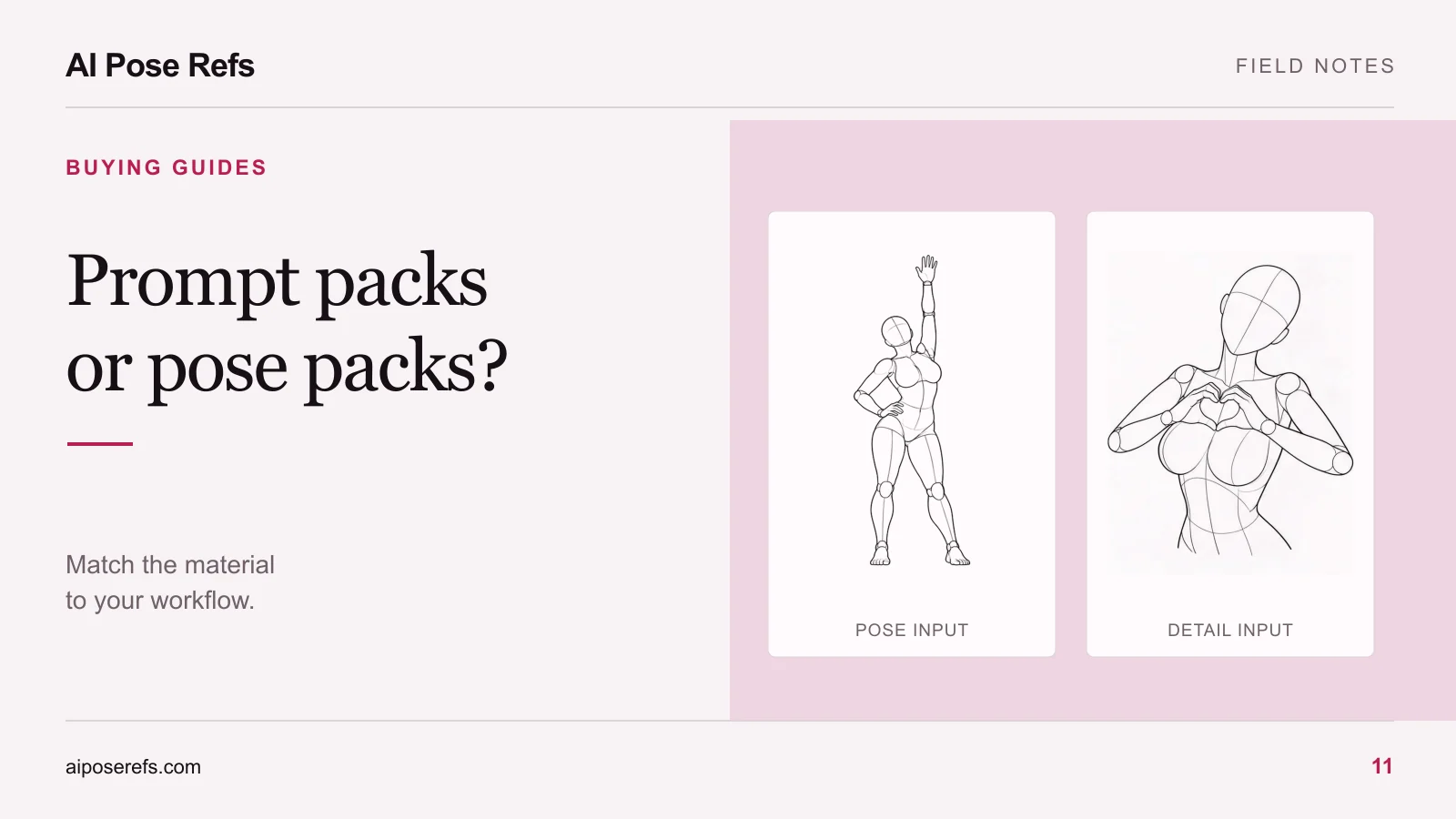
Start with one image you would genuinely like to use as a direction for your own work. Find its matching entry in the contents list. Does it come with a pose reference, a full prompt, a settings note, or only the finished image?
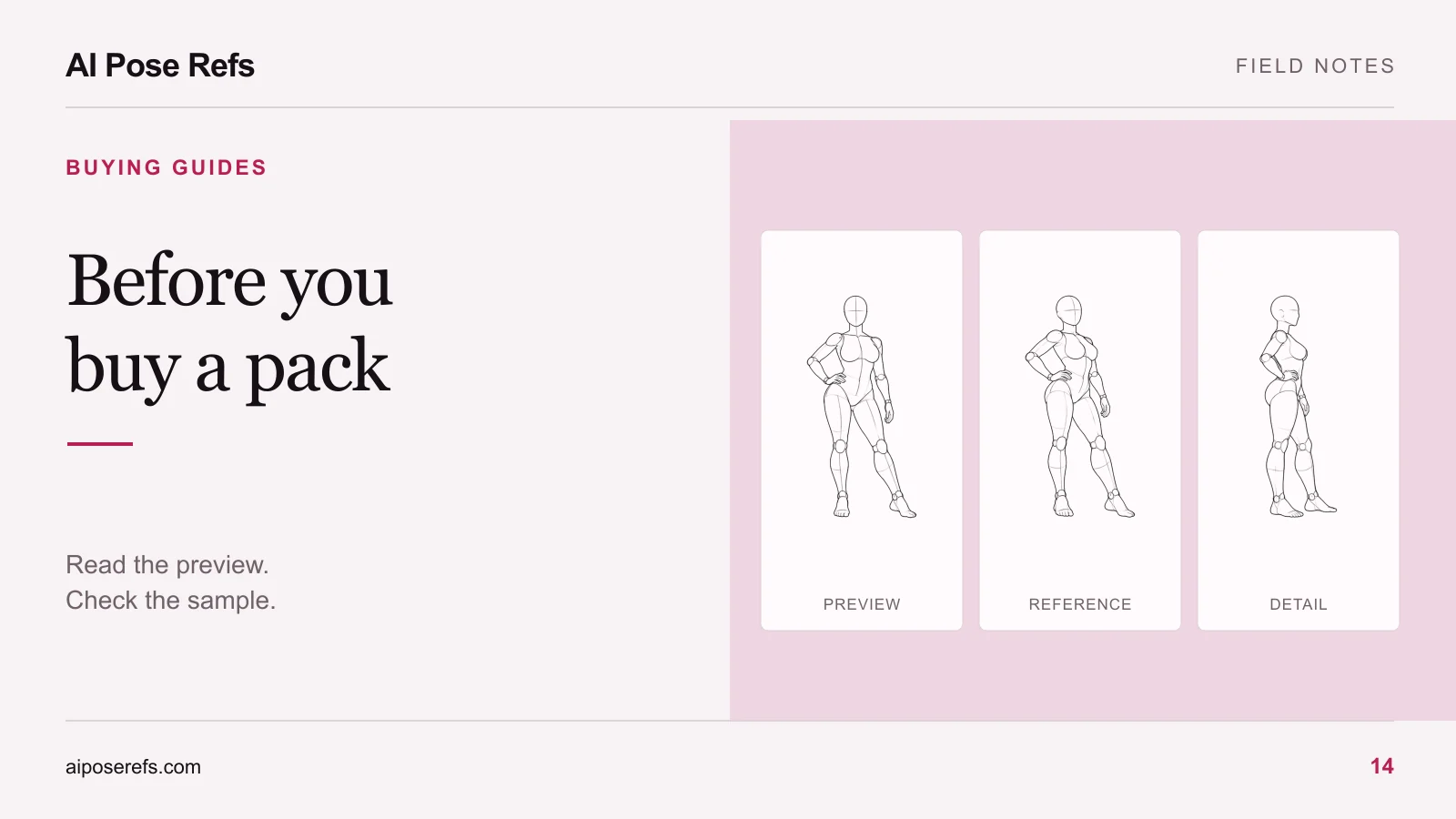
A finished portrait and a pose-reference drawing do different jobs. The portrait shows a proposed visual outcome. The drawing supplies information about gesture and viewing angle. The latter does not contain the portrait's face, clothing, background, or lighting.
You can see that distinction with the standing hand-on-hip reference. Its useful information is the weight shift and limb arrangement. Styling a character around that reference requires additional decisions.
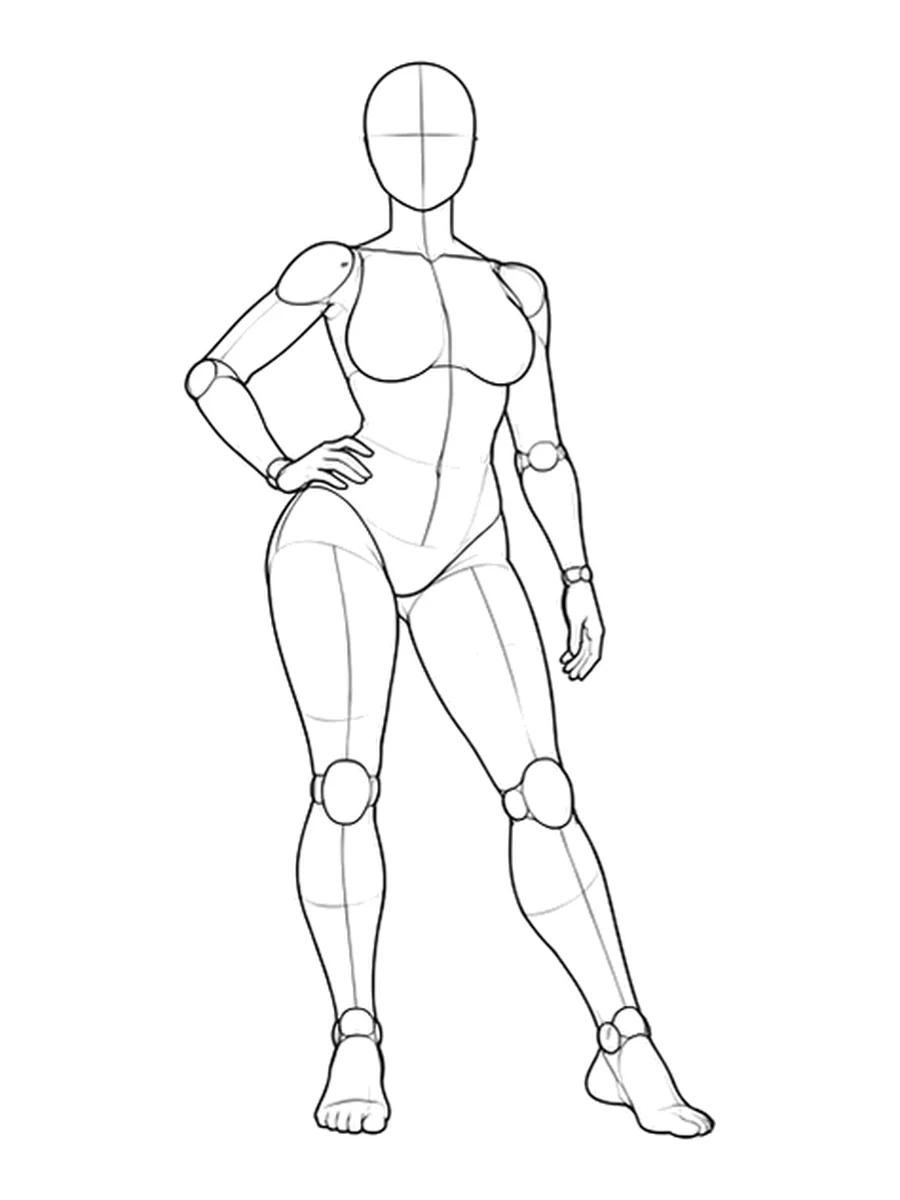
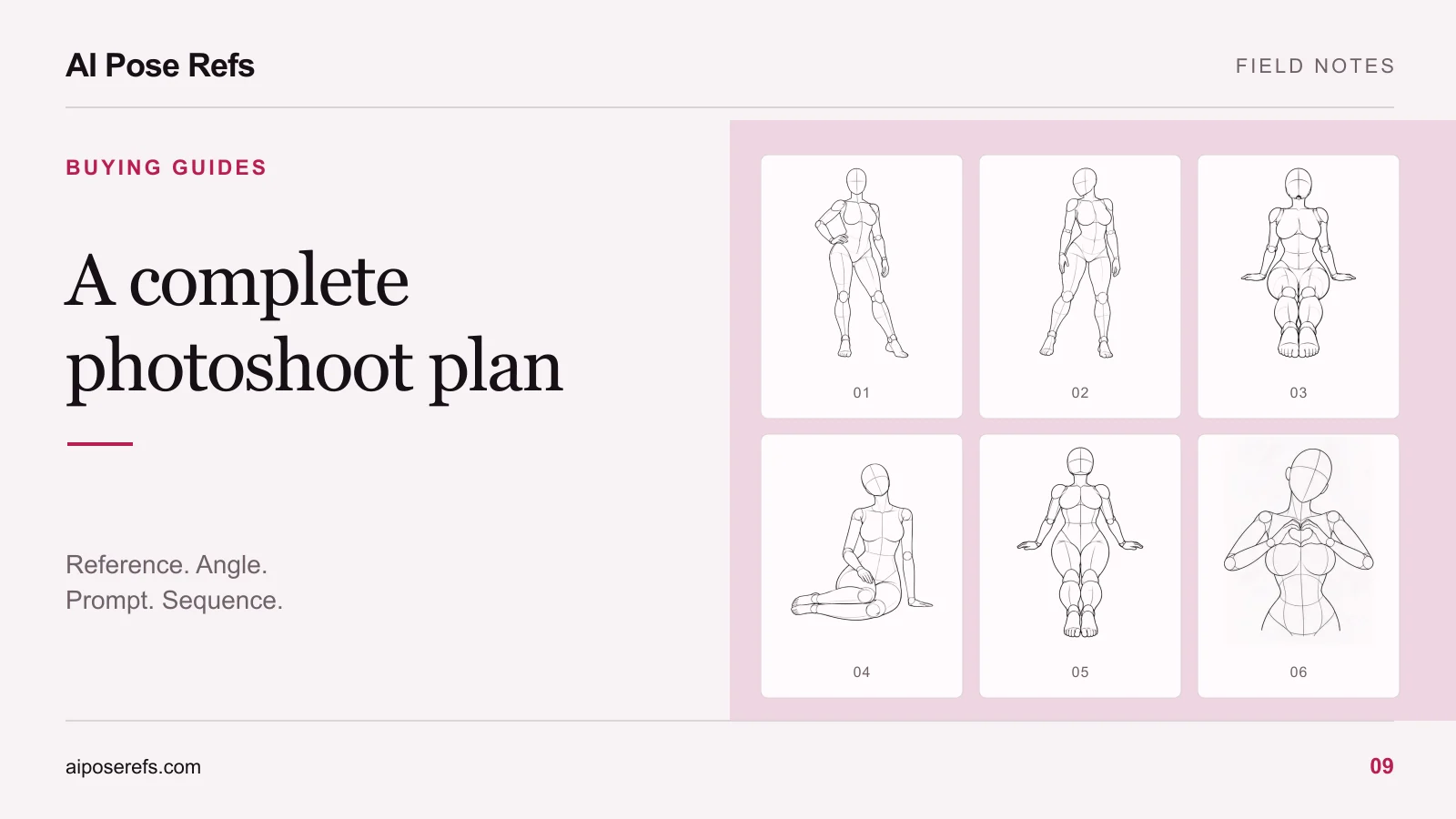
If a product advertises “a complete series,” check whether every advertised shot has its own usable input. One example prompt next to a large preview grid does not establish that each picture is covered. Our guide to a complete photoshoot plan lists the pieces you should be able to identify.
Inspect a representative sample
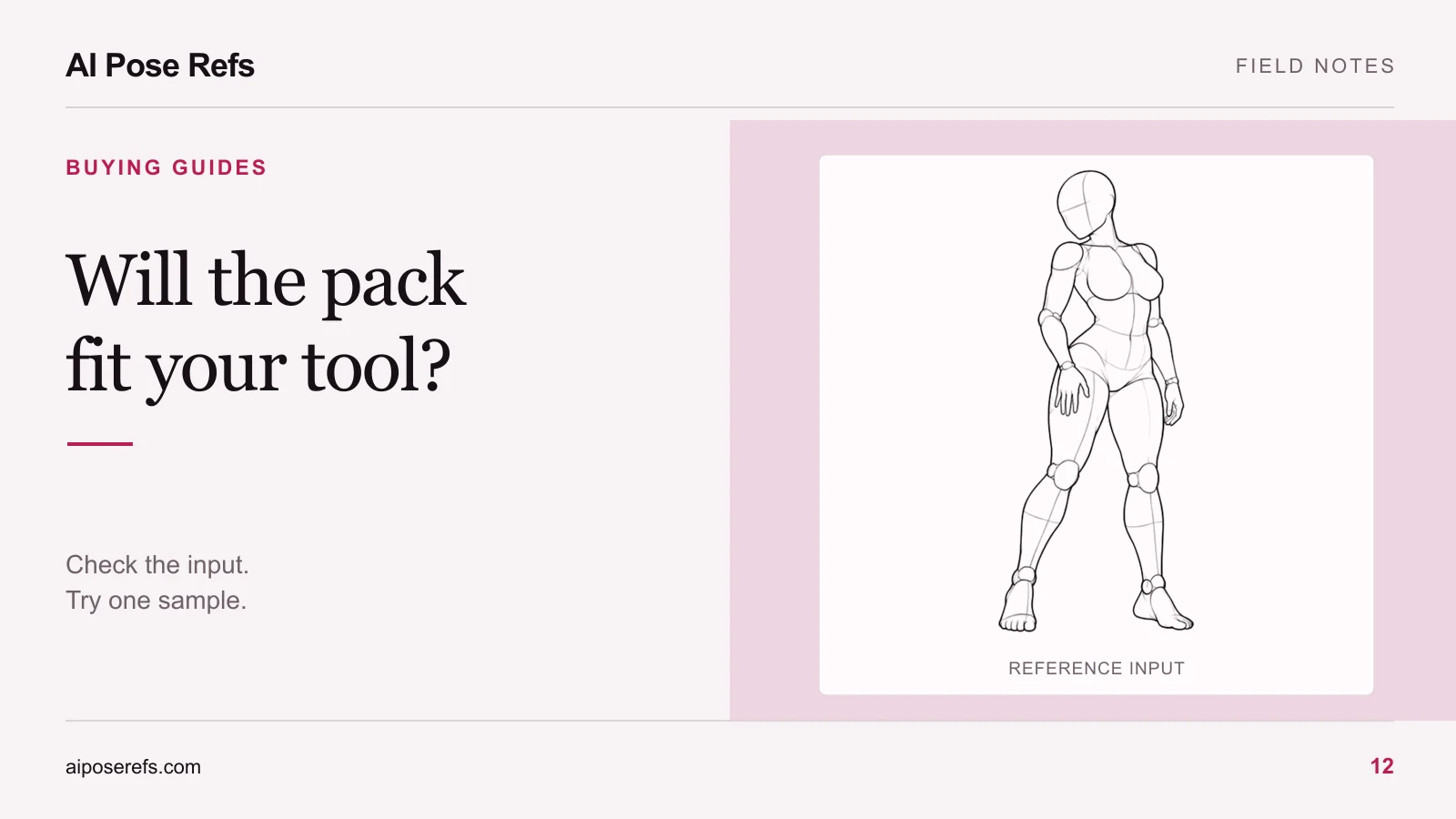
Choose a sample close to the work you intend to make. A straightforward front-facing portrait may not answer your questions about a pack whose main attraction is complex full-body poses. Where available, inspect a shot that includes the details you find difficult, such as hands, overlapping legs, or a particular camera angle.
Open the sample image at its actual pixel dimensions. A sharp thumbnail can hide a small source file. Look for visible joints and contact points in a pose reference. Check whether a crop removes the very feet or hands that the shot depends on.
Then read the prompt as a complete input. It should tell you what is shared across the series and what belongs to this particular shot. If you need to assemble several fragments, the instructions should make the order clear. Compare prompt packs and pose-reference packs if the product name leaves its format ambiguous.
| Item | What to inspect | Question to resolve |
|---|---|---|
| Reference file | Actual dimensions, angle, visible landmarks | Does it show the pose I need? |
| Prompt | Full text and editable details | Can I use it without guessing what is missing? |
| Example result | Matching shot number and input | Is this the result associated with these files? |
| Instructions | Input locations and required steps | Can I follow the sequence in my workflow? |
| Contents list | Formats, versions, and included shots | Does the download match the offer? |
Separate visual evidence from compatibility claims
Look for the image tool and model version used to make the examples. Settings that materially affect the output should be documented where the workflow depends on them. If the seller used additional editing, a separate character reference, or another paid component, that information helps explain the result.
A sample produced with one setup is evidence about that setup. It is not proof that every image tool will handle the same inputs in the same way. Use the tool compatibility checklist for that separate question.
When a usable sample is available, try it with a modest, predefined test. Upload the supplied reference to the appropriate input, paste the complete prompt, and follow the documented settings you can actually access. Record any substitutions you make so you know when your trial differs from the example.
Judge the result against the purpose of the sample: readable pose, intended angle, coherent styling, or a repeatable sequence. Do not make “pixel-identical to the preview” the only criterion. Also avoid changing every setting at once and then attributing the outcome to the pack.
Keep a short acceptance note
Before buying, complete this in your project notes:
Project and intended shots:
Sample inspected:
Tool/model used in the example:
My tool/model and any substitutions:
What worked for my intended use:
Missing files, instructions, or answers:
Decision and reason:
This is particularly useful when comparing several attractive previews. You can compare their usefulness for one project instead of allowing each product page to redefine what you think you need.
If no sample is offered, identify the unanswered question before deciding. A clear contents list may be enough for a simple reference collection. A complex workflow with undocumented dependencies leaves more to infer. Ask a focused question about that missing detail rather than requesting a general assurance that the pack is “easy.”
Check what happens after checkout
Read the stated usage terms, update scope, re-download access, and support channel. Check whether a refund policy contains conditions relevant to downloaded resources. Keep the product description and instructions with your receipt so you can refer to the version you bought.
If the remaining decision is financial, compare one-time packs and subscriptions over the same expected working period. If you are still unsure what poses the project needs, build a small shortlist in the gallery first. A clear shot list makes both the preview and the purchase easier to evaluate.
Related posts
Find pose ideas, plan portrait series, and use references in your own AI image workflow.