AI Pose Refs for beginners: find a pose and copy its prompt
Find a reference in AI Pose Refs, compare its views, open the image, and adapt the starting prompt in your own AI tool with this beginner workflow.
Written by
AI Pose Refs Team
Practical guides to choosing pose references, planning portrait series, and using references in your own AI image workflow.
To use AI Pose Refs, find a pose, choose the view that matches your intended composition, and open the reference image. Copy the starting prompt into your own image tool, then adapt its character and styling instructions. The gallery provides the reference and text; generation happens in the image tool you choose.
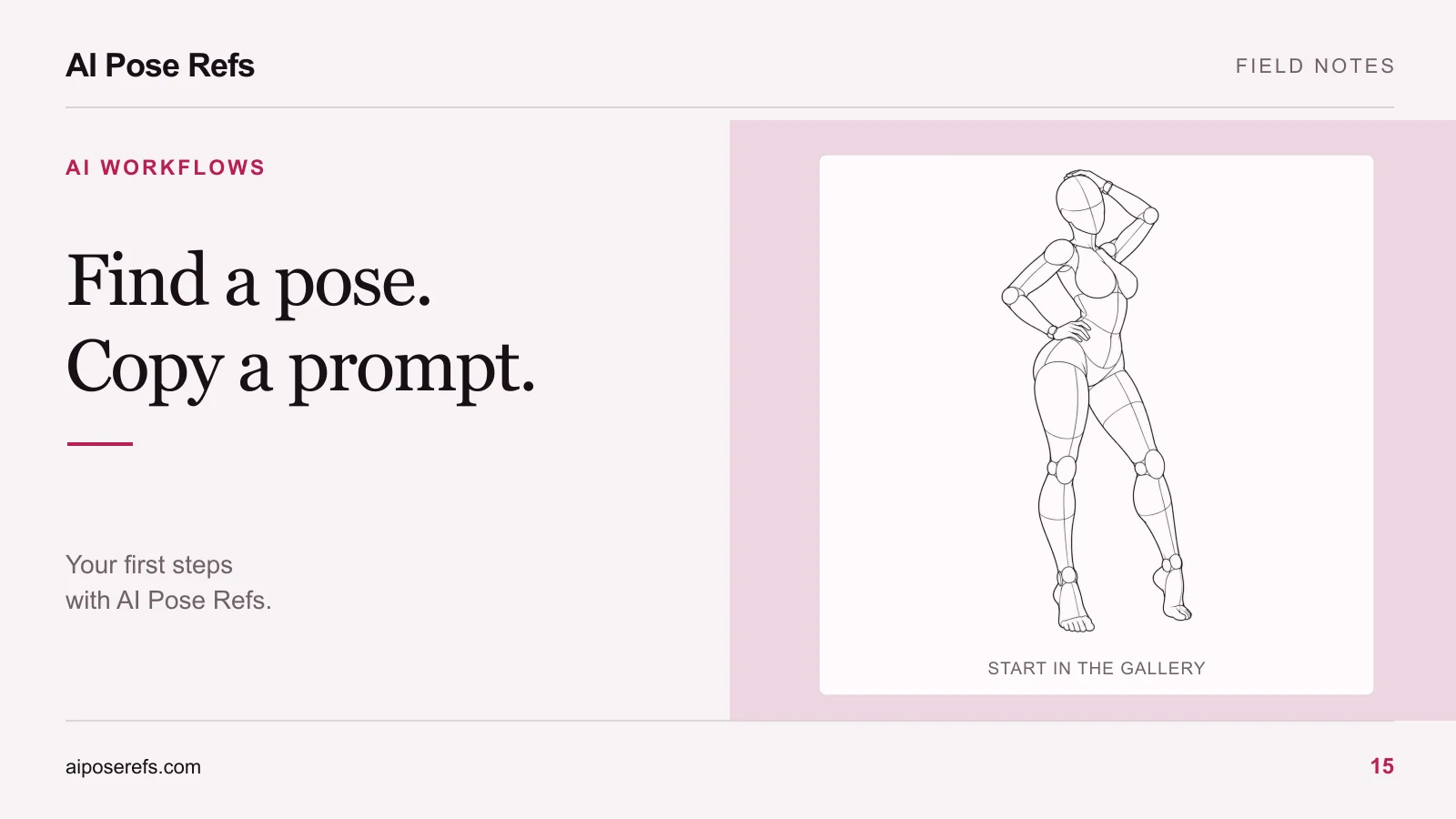
For your first attempt, choose a simple adult character portrait with one visible action. A standing figure with one hand on the hip is easier to describe and review than several people interacting with furniture. You can add a more involved scene after you understand where the reference and prompt go.
1. Search for the gesture you need
Open the pose gallery and start with an ordinary description of the body position: standing, seated, looking back, or a hand on the hip. The search field accepts a pose, gesture, or movement. If a detailed phrase produces no useful matches, shorten it.
Use the category buttons to narrow the posture. The collection selector helps separate the available collections, including full-body and upper-body references. These filters are useful when your concept is broad but your composition is already fixed.
For example, a waist-up portrait needs readable shoulders and hands more than it needs an elaborate leg position. A full-body image needs the feet and support points as well. Start with the composition you intend to show, then choose a reference that contains enough information for it.
Open the contrapposto pose if you want a straightforward example to follow through this guide.
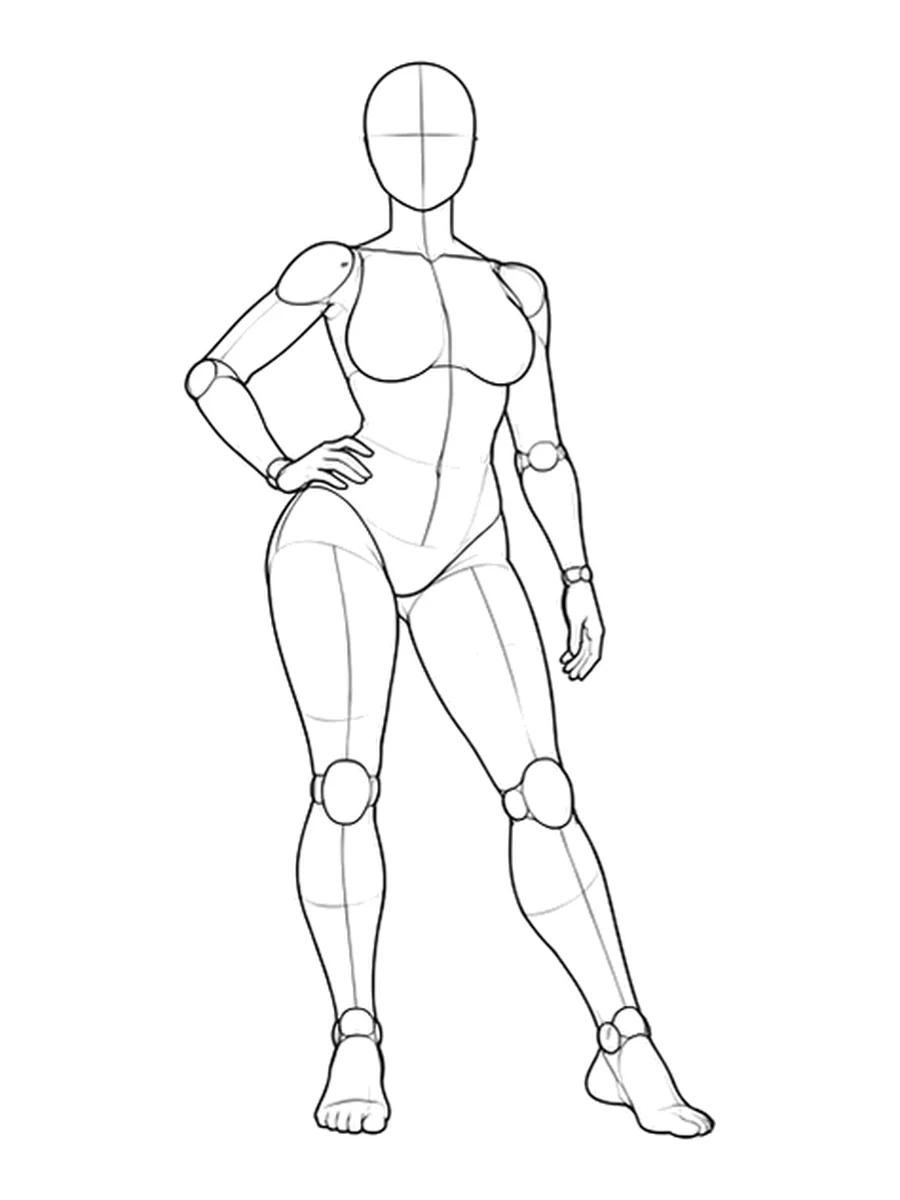
2. Compare the available views
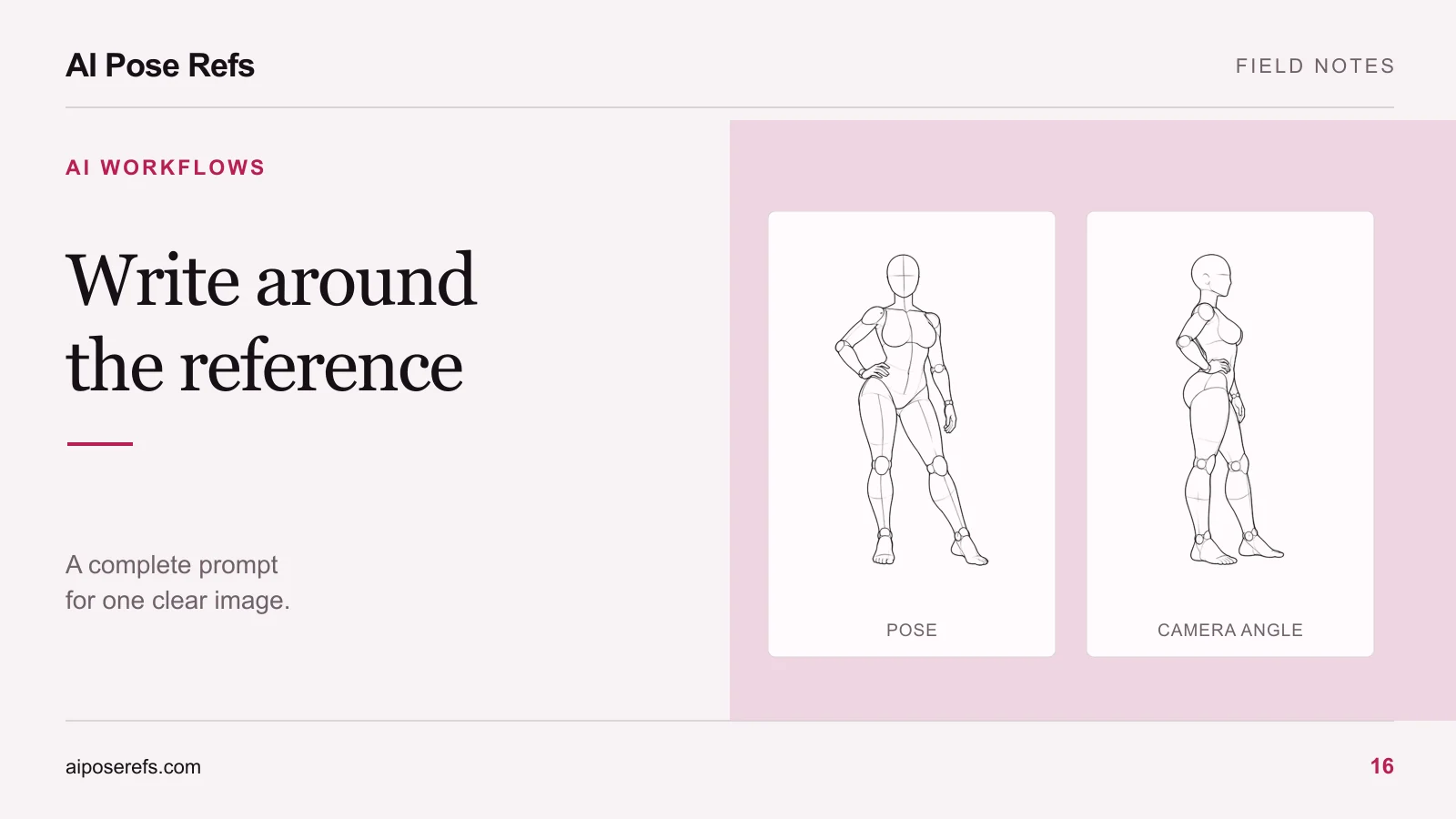
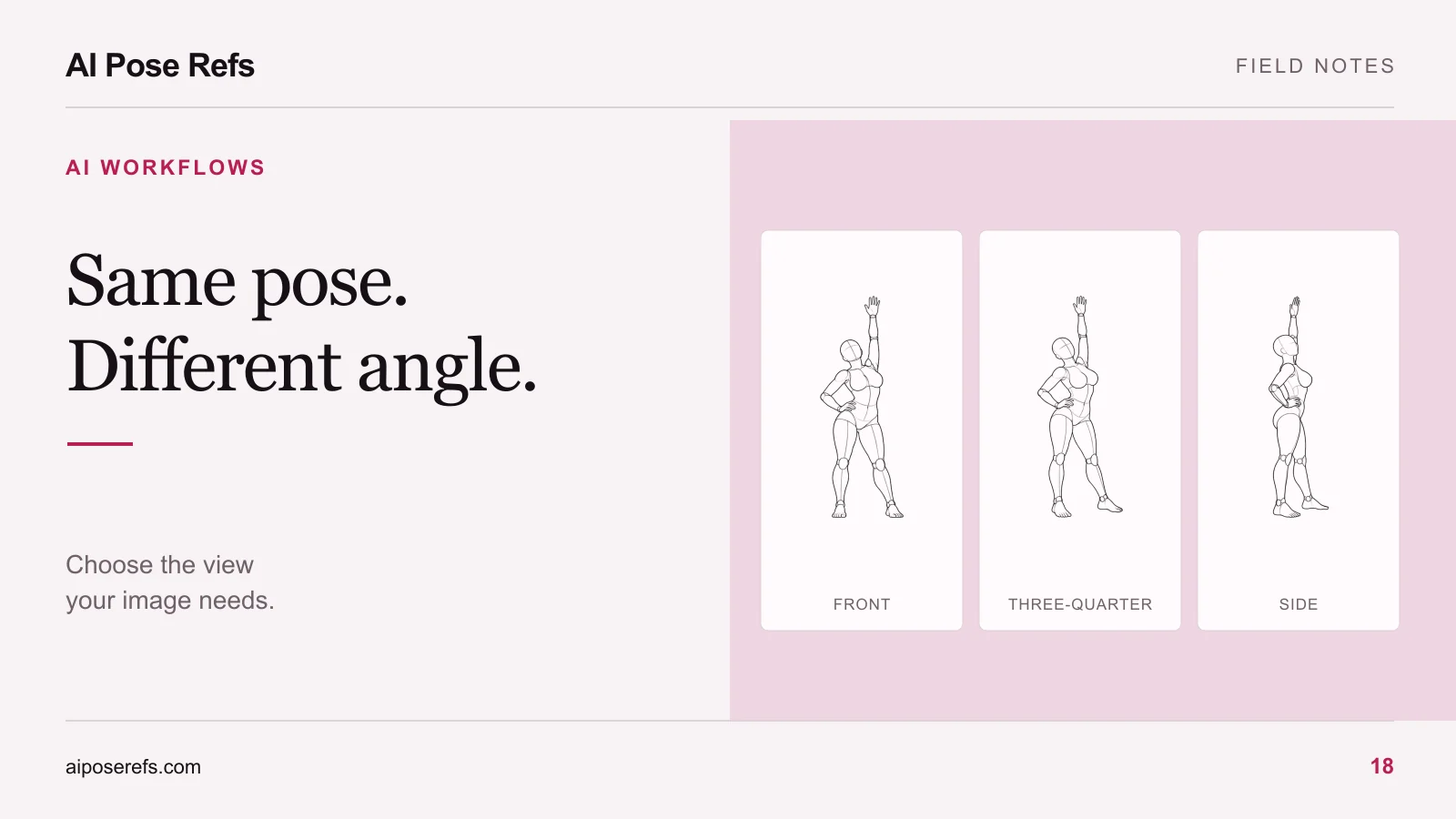
The pose detail shows the active view and the number of views available. Use the thumbnails or previous and next controls to compare them. A pose may offer front, three-quarter, side, high-angle, and low-angle views; use the views actually listed for that entry.
Look at what changes between them. A hand that is clear from the front may overlap the waist from the side. A raised knee can hide part of a leg. Choose the view that shows the relationships most relevant to your final image.
You can open the larger viewer to inspect the reference more closely. The viewer also supports arrow-key navigation between views. If you are unsure which angle suits the composition, use the view-selection guide before copying your prompt.
3. Open the selected image
Choose Open image in the pose detail to access the current view's image. Check that the image you opened matches the angle you selected. If you save a permitted reference file for use in your own tool, give it a name that includes both the pose and the view.
Opening or saving an image is separate from copying its prompt. The current gallery does not send both into another image service for you. You will upload the reference and paste the text yourself.
Your chosen image tool may have different inputs for general images, composition, style, or character references. Use the input described by that tool's documentation. A pose drawing is intended to guide body arrangement; it does not supply your character's identity. The pose versus character reference guide explains that distinction.
4. Copy and adapt the starting prompt
Click Copy pose prompt. When the copy succeeds, the button shows Prompt copied. If clipboard access is unavailable, select the text in the prompt field and copy it manually.
Read the copied text before generating. The gallery's starting prompts describe drawing mannequins, often with line art and a white background. Those details are appropriate for reference drawings. They need changing if your intended result is a styled photographic portrait.
Keep the useful pose description and replace conflicting styling. For example, keep “contrapposto with a hand on the hip,” then specify your original adult character, clothing, setting, and framing. Do this in your notes or image tool: the prompt displayed in the pose detail is read-only.
Changing the selected image angle does not rewrite the stored prompt. Add clear camera wording yourself when it matters. Our reference-based prompt guide provides a complete template you can adapt.
5. Review one result before making a series
Upload the selected reference where your tool supports it, paste the adapted prompt, and generate a first attempt. Treat it as something to inspect. Check the silhouette, hand placement, visible joints, and camera position against the reference.
If the clothing is wrong, revise that part of the brief. If the pose is wrong, confirm the input and remove contradictory pose wording before changing everything else. Keep a note of one change and the result it produced. This makes troubleshooting easier than replacing the whole prompt after every attempt.
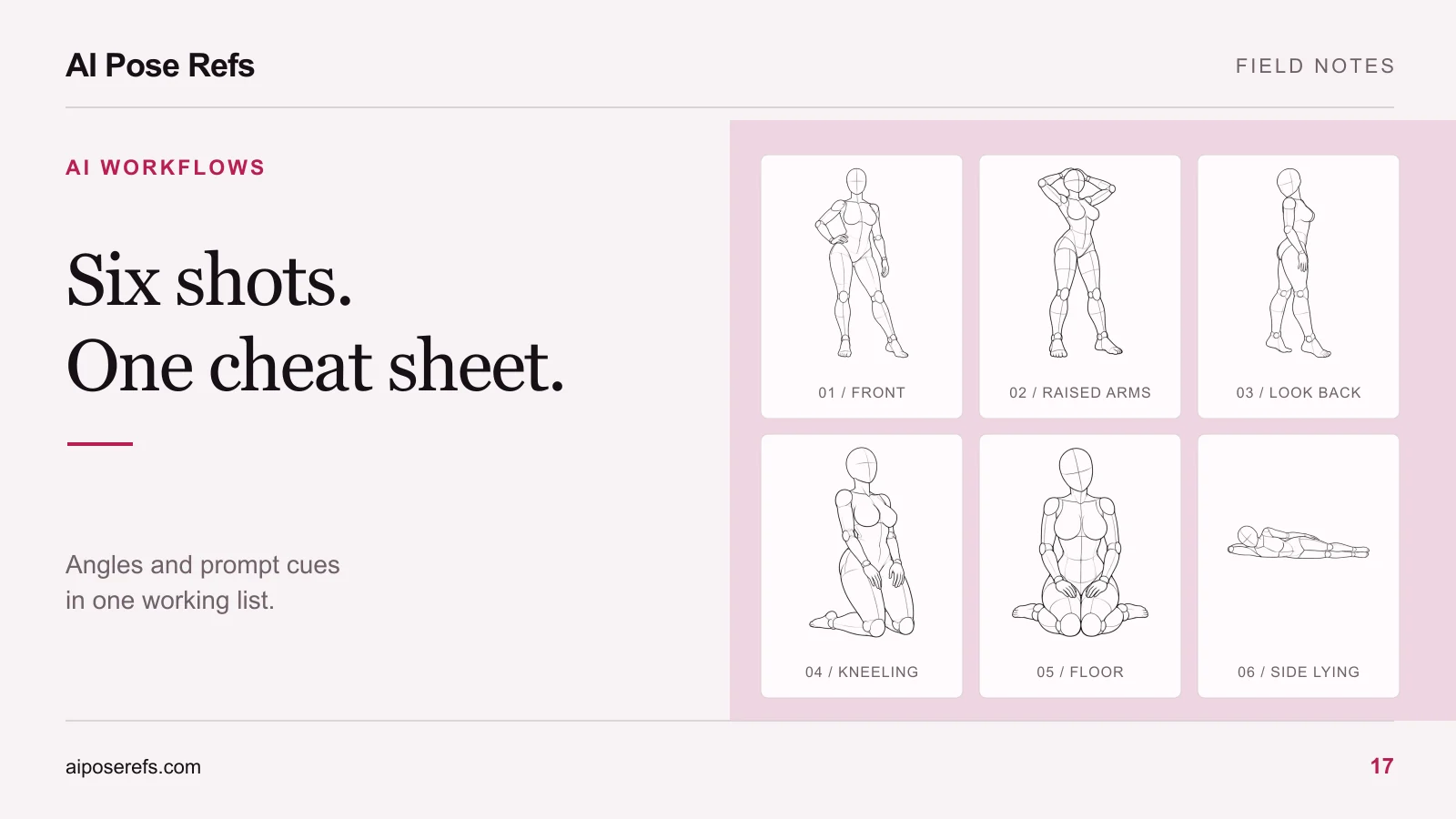
Once you have a useful first result, save the complete prompt and selected reference name outside the clipboard. You can then expand the concept using a six-shot series workflow.
Keep your shortlist accessible
Use the bookmark control to save a pose and open Saved to revisit your shortlist. These saved poses are stored in the current browser. They are not a cloud project library and should not be your only record of a project you need to resume elsewhere.
Keep the pose-page link and angle in your project notes as well. That small habit lets you return to the correct reference even if you change browsers or clear local data. Finish your first session with one selected pose, one adapted prompt, and a note describing what you want to improve next.
Related posts
Find pose ideas, plan portrait series, and use references in your own AI image workflow.